Queries and Alerts
Queries are an efficient way to return to a common search or set alerts to be notified when new results are available.
Saving a Query
Save a query while on the search results page:
-
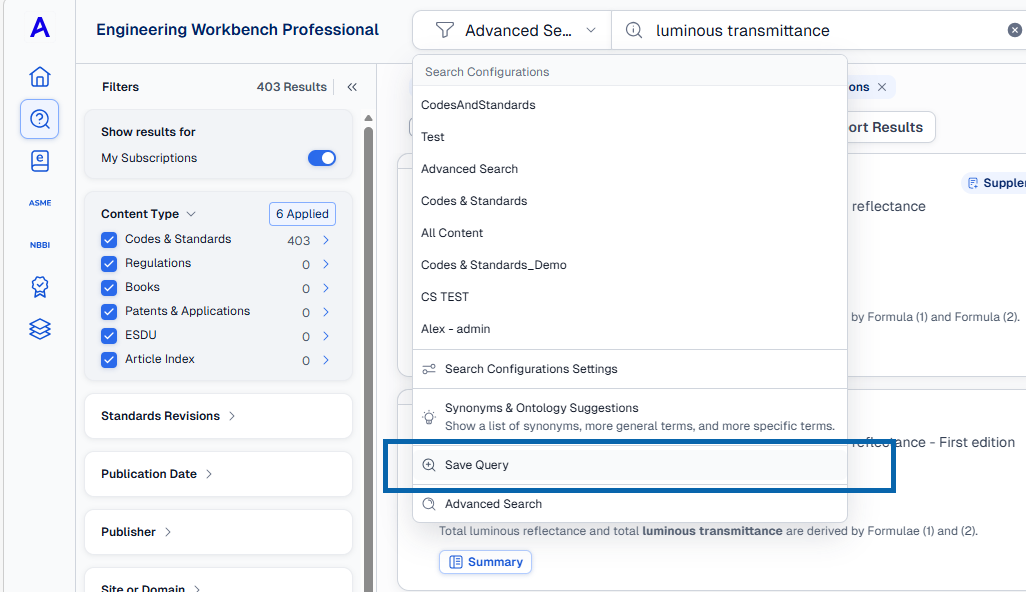
Use the Search bar drop down and select Save Query.
-
-
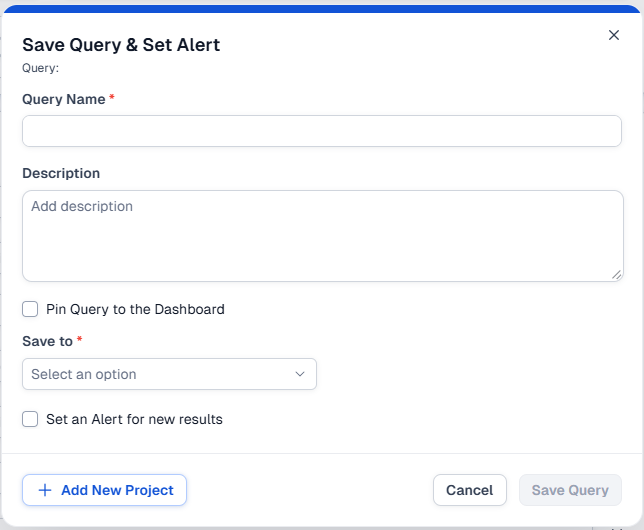
This will open the Save Query & Set Alert window.
-
-
Give your Query a name (required) and description (optional)
-
To include the filters you've applied to the results as part of the query check the box next to "Save with facet filters"
-
If you want the query to appear on your dashboard, check the box next to Pin Query to the Dashboard.
-
Use the Save to drop-down to select whether you want to save this query to a project folder or if you want them displayed within My Workspaces.
- Check the last box if you want to be alerted when the query has new results.
Managing Queries and Alerts
-
Queries which have been added to a Project can be managed within that Project folder on the All Projects tab of My Workspaces.
-
Queries that were saved to Queries and Alerts will be available to edit on the Queries and Alerts tab of the My Workspaces page.
Exporting Queries
To export saved queries to a file
- To select the saved queries that you want to export to a file, click the titles of the queries.
- Click Export.
- On the Export Results dialog box under Export to, click the file format that you want to use:
- Excel (.xlsx extension)
- Click Export.