Saving a query to My Workspaces
To save a query
- Click Save Query / Set Alert.
- In the
 Save Query / Set Alert dialog box, type a name for the alert. Use alphanumeric characters only.
 - Type a description of your saved query. This description is included in email notifications about new results that are found by the query.
- To save your query with any results filters that you have set, select the Save with facet filters check box.
- To set an alert that will notify you when new results for your query are found, select the Set an alert for new results check box. Choose how often to run the query from the Interval list: Daily, Weekly, Bi-weekly, Monthly, or Quarterly.
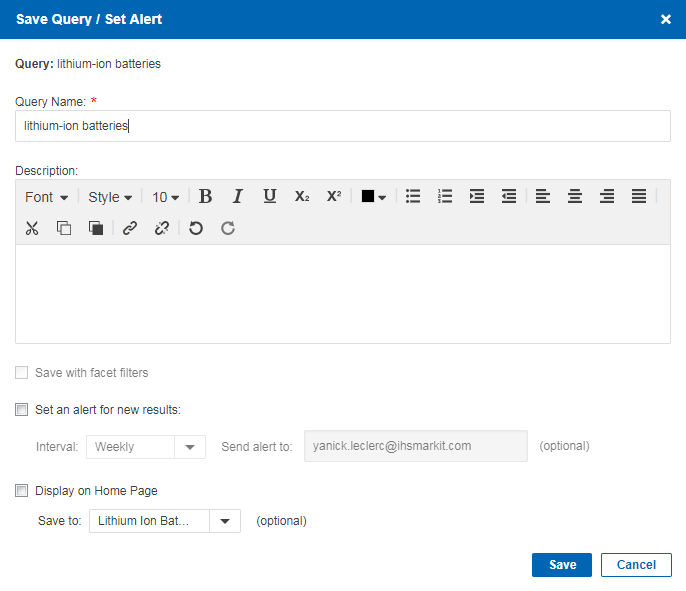
- To send email notifications about new results from saved queries, next to Send alert to type one or more email addresses, separated by semicolons.
- Click Save.
Where queries are stored
Only the queries themselves are stored on the server. Search results from the queries are not stored. To view query results, you must run the saved query or the new results query.
Email notifications about new results from saved queries
For each saved query, we can send you an automated email message whenever new results are found. You can specify that the email message be sent to multiple email addresses. we will send a separate email message for each saved query that finds new results.