Configuring sharing options
You must be a Data Ownership Management administrator to view this administration page.
To display the Configure Sharing Options page
On the left panel of application links, click  (Administrator), and then
click Configure Sharing Options.
(Administrator), and then
click Configure Sharing Options.
The Configure Sharing Options page looks like this:
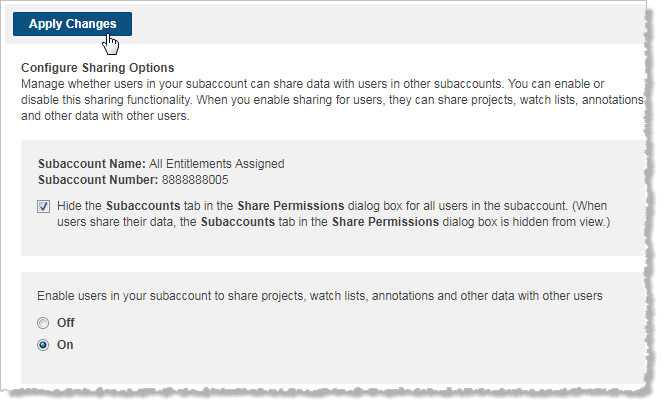
This page enables administrators to manage how users in a subaccount share data.
- To enable users to share their data, click On under Enable users in your subaccount to share projects, watch lists, and other data with other users .
- To disable users from sharing data, click Off.
Note: When you make a change in the sharing status for users in your subaccount, click Apply Changes after you have made the change.
Disable user sharing
When administrators disable users from sharing data:
- Data previously shared by users in this subaccount is set to private.
- Data that has been shared with a user in this subaccount is not visible to this user.
Users in other subaccounts cannot share data with users from a subaccount in which sharing has been disabled. This means that these users and related subaccount are disabled (grayed out) when a user chooses who to share data in the Share Permissions dialog box dialog box in My Workspaces.
Hide the Subaccount tab in the Share Permissions dialog box for all users in a subaccount
- Click On, and then select the Hide the Subaccounts tab... check box.
- And then, Click Apply Changes.
This means that when a user shares data, they can elect to share projects with users, but will not be able to select entire subaccounts to share their data with. The Subaccount tab in the Share Permissions dialog box that appears when users share a project in My Workspaces is disabled.