My Publications
My Publications is a tool within Engineering Workbench that enables you to organize and search all of your internal company documents in one location. You can upload all of your organization's internal documents to the My Publications tool and you can search for these documents based on the metadata that you specify. The documents you upload to My Publications can also be accessed by other users in your organization who share the same account as you.
To display the My Publications tool:
On the left panel of application links, click  (Administrator),
and then
click My Publications.
(Administrator),
and then
click My Publications.
The My Publications page looks like this:
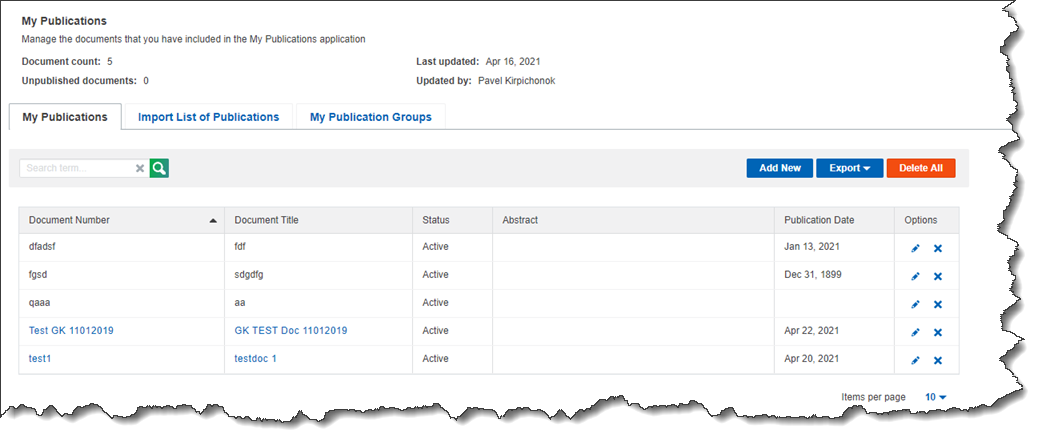
Document count: refers to the number of documents you have published (uploaded) into My Publications
Unpublished documents: refers to the number of documents that are being processed by Engineering Workbench (It takes time from the moment you click Publish, to upload your document into the My Publications tool, to the time it becomes indexed by Engineering Workbench so that it is visible and accessible.
Last updated: refers to the last time you made a change to a document in My Publications
Updated by: refers to the person who made the most recent change to a document in My Publications
There are a number of terms that are useful to know when you add or work with documents in the My Publications tool. You can find all relevant field definitions here.
To search for a document in My Publications
-
Submit a query in the search input field and click

To add a new document to My Publications
-
Click Add New.
-
Fill out the
 Add a New Document fields.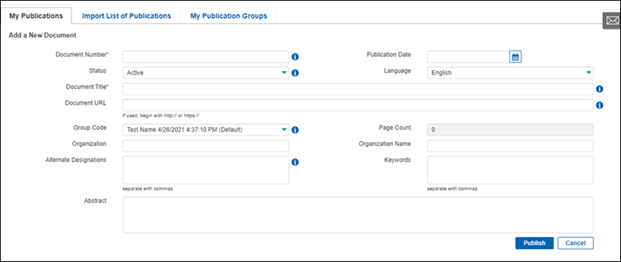
-
Click Publish (It will take some time when you click Publish for the new document to be indexed by Engineering Workbench and then accessible to you).
To export the list of documents in your My Publications tool
-
Click Export
-
Select the desired export format (XML or CSV).
To import a list of publications
You can import multiple internal documents at once to My Publications.
-
Click on the Import List of Publications tab
-
Click Browse and upload the CSV file containing the list of documents that you want to publish to My Publications.
-
Review the
details related all the documents you have published from your CSV file on this page. Any errors to metadata associated with a specific document in your list will be detailed in the Errors column of this list. Resolve any of the errors that are identified in the details. -
Click Publish to upload them to My Publications (and then indexed by Engineering Workbench).
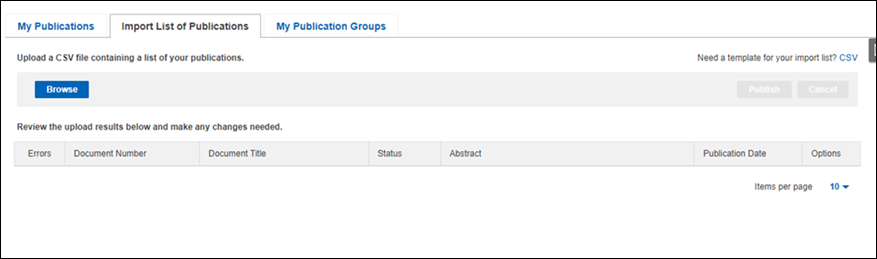
Note: If you require a CSV template that allows you to correctly input all relevant metatdata for your documents, go to the section, Need a template for your import list? and click on CSV.
To create a new My Publication group
If you have a set of internal documents that you want work with and you want to keep track of them as a group, you can create a My Publication group that enables you to group a specific set of documents together for easy access. You can also specify a subaccount to associate with your group so that everyone who is a part of your subaccount can access a group that you create.
-
Go to the My Publications Group tab
-
Click Add New Group to open the page for creating a new group.
-
Enter a Group Name.
-
(Optional): Select the Default check box if you want to set this group to be the default group.
-
Create a Group Description.
-
Select one, or more, subaccounts to associate with your new group.
-
Click Create Group.
Note: You can not only search by document in the My Publication tool, but you can also search by group name. Submit a group name in the search input field in My Publications, and all the documents associated with that group will appear in your search results.