Subscription requests
You must be an Engineering Workbench Custom Collections or Sales Representative administrator to view this page.
To display the Subscription Requests page
On the left panel of application links, click  (Administrator), and then
click Subscription Requests.
(Administrator), and then
click Subscription Requests.
The Subscription Requests page lists requests from users to add specified documents to their subscriptions. Use this page to review and manage users' subscription requests. The features that are visible on this page will vary in accordance to the administration role you are assigned.
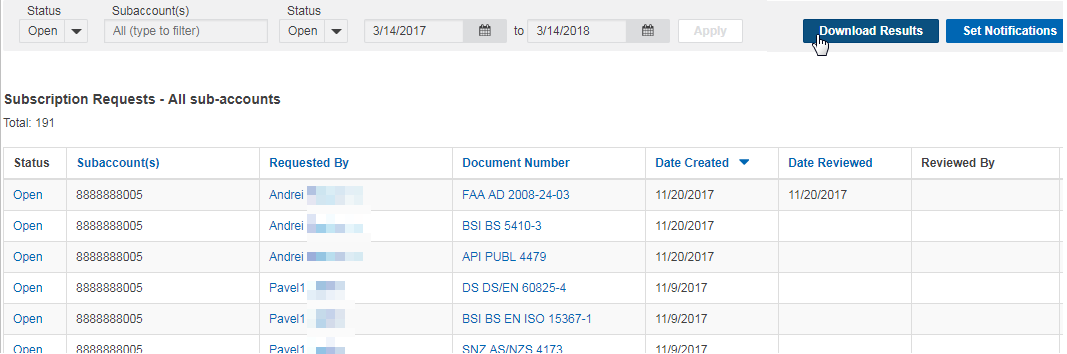
The Subscription Request page looks like this:
Click  (Status) to select one of the
following:
(Status) to select one of the
following:
- All, to view all your subscription requests.
- Open, to view only your open requests.
- Closed, to view only your closed requests.
To filter subscription requests by subaccount, click in the box under Subaccounts, and then click the desired subaccount.
To export the subscription requests table to a file, click Download Results.
To sort by Subaccounts, Requested By, Document Number, Date Created, and Date Reviewed columns, click the column header.
The following columns can appear in the table:
- Status can be Open or Closed. To review a subscription request, click Open in the column.
- Subaccounts displays the subaccount number associated with the user who made the request.
- Requested By displays the name of the user who made the request. Click a name to email the user.
- Document Number displays the number of the requested document. Click the number to display the Summary window.
- Date Created displays the date when the user made the request.
- Date Reviewed displays the date when the administrator reviewed the request.
- Click Add to Collection to include the subscription request in a collection.
- Click Hide to remove the selected subscription request from the table. Note: If you choose to hide a request, you cannot display it again.
Customizing Notifications
-
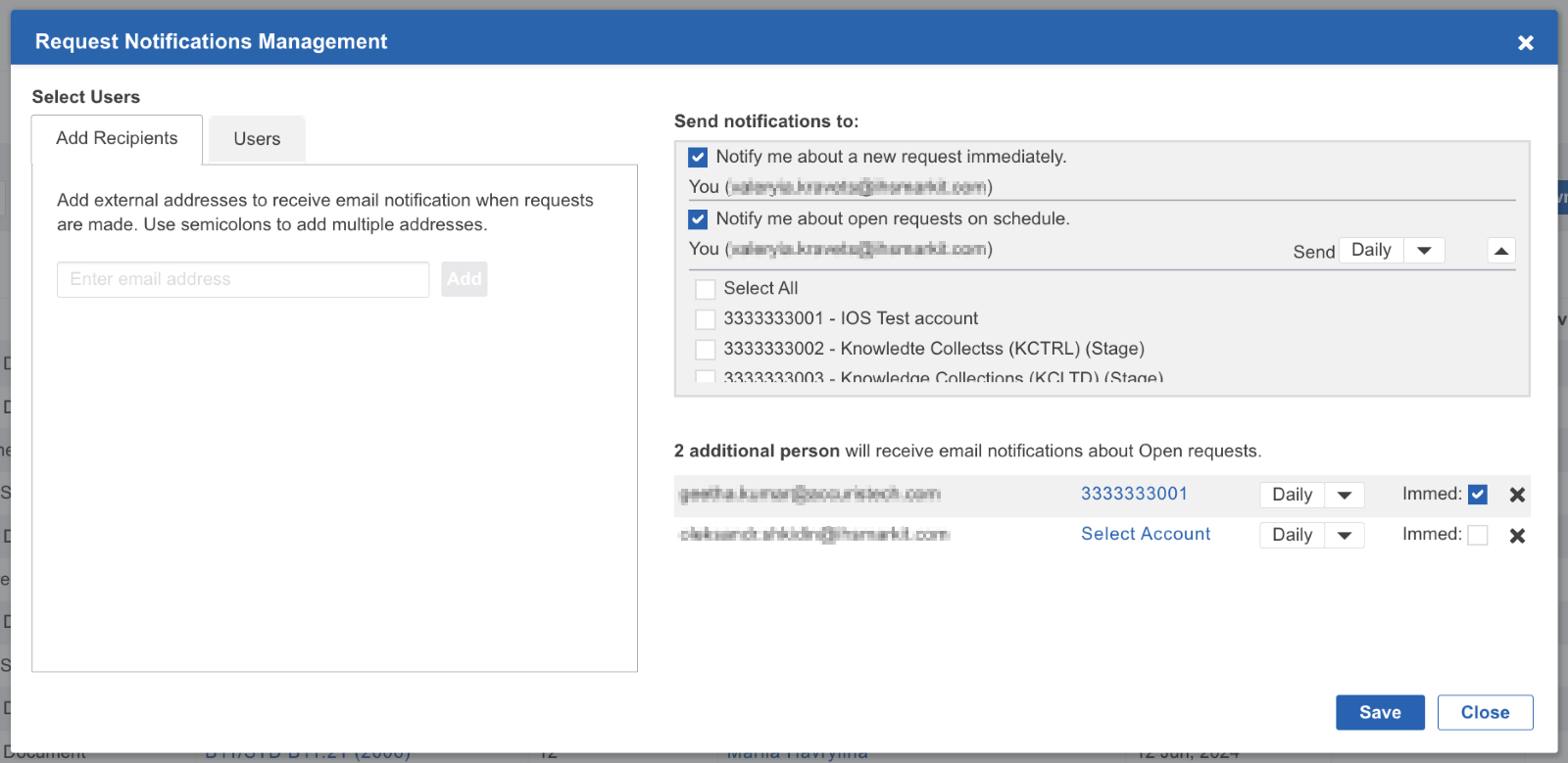
To customize notifications about subscription requests, click Set Notifications.
-
To be immediately notified when new subscription requests are made, select the Notify me about a new request immediately check box.
-
To be reminded about all Open subscription requests, select the Notify me about open requests on schedule check box and select how often you want to be notified about opened requests: Daily, Weekly, or Monthly.
-
Select subaccount(s) you want to receive notifications from: the Select All check box or any check box from the list. Note: if no subaccount selected, no notification will be sent to you.
-
To select users to be notified, click the Users tab, and then click the names of the users that you want to add.
-
To select a user to be notified who is not included in the subaccount, click the Add Recipients tab, type the email address of that user, then click Add.
-
To apply changes, click the Save button.