Welcome Message
You must be a Custom Sections administrator to view this administration page.
To display the Welcome Message page
On the left panel of application links, click  (Administrator), and then
click Welcome Message.
(Administrator), and then
click Welcome Message.
The Welcome Message page enables the administrator to create and manage messages directed at users. Administrators can communicate a message to users of an account, or one or more subaccounts, by creating a welcome message that is displayed in the widgets area of the home page. Use this page to create new messages, as well as to edit and manage existing messages. You might not have access to this feature. Contact Accuris Customer Care to get access to the welcome message feature.
The Welcome Message page looks like this when you have not created any messages:
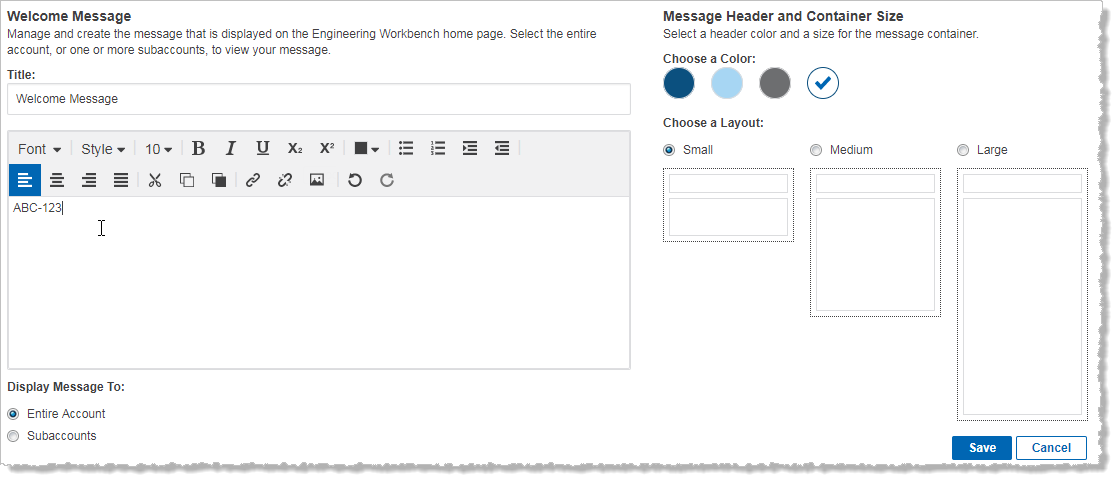
To create a new welcome message:
- If you have preexisting welcome messages, click Add New. If this is your first welcome message, see steps 2-6.
- (Optional) Type a title for your message in the Title box.
- Type a message in the text box. Use the rich editor toolbar to format your message.
- (Optional) Select a color for the message header, and then select a layout for your message.
- Choose to display your message to the entire account, or to one or more subaccounts, by doing one of the following:
- Click Entire Account
- Click Specific Subaccount, and then, select one or more subaccounts in the drop-down list.
- Click Save.
Users can see only one message at a time in the widget section of the home page. A message created for a subaccount will override a message created for an entire account.
The Welcome Message page looks like this when you have existing messages to manage:
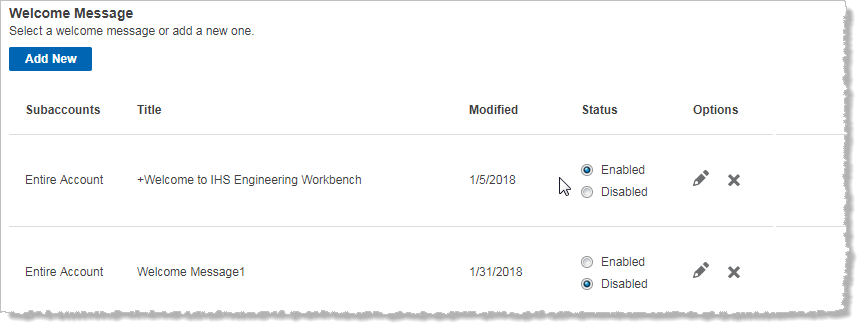
The following columns appear in the table:
- Seen By displays which account or subaccounts see a message. Click Subaccounts to display the subaccount linked to a message.
- Title displays the title of a message.
- Modified displays the date a message was last revised.
- Select Enabled to display a message to users, or select Disabled to hide it from users.
- In Options, click
 to
edit a message, or click
to
edit a message, or click  to delete it.
To edit an existing Welcome Message:
- Click
 next to the message you want to
revise.
next to the message you want to
revise. - Edit your message in the text box.
- Click Save.
Notes:
- If a welcome message that is addressed to an entire account already exists, and you choose to create a new one, you will be asked to either disable the active message or set the status of your new message as Disabled.
- If a welcome message that is associated with a subaccount or set of subaccounts already exists, and you choose to create a new one directed at the same subaccount or set of subaccounts, you will be asked to either disable the active message or set the status of your new message as Disabled.