Document Viewer Toolbar
While viewing a document you will notice a set of buttons at the top of the page. Each of those is described here:
 Add to Watch List
In the Document tab toolbar, click  . In the Add to watch
list dialog box, select an existing watch list or add a new
watch list, and then click Save.
. In the Add to watch
list dialog box, select an existing watch list or add a new
watch list, and then click Save.
Bookmark
Click  to create a bookmark link to the
document. In the drop down next to 'Save To' you can either select or create a new project where you will save this bookmark.
You can also add a bookmark description, and choose to display this bookmark on your home page.
to create a bookmark link to the
document. In the drop down next to 'Save To' you can either select or create a new project where you will save this bookmark.
You can also add a bookmark description, and choose to display this bookmark on your home page.
Get Link
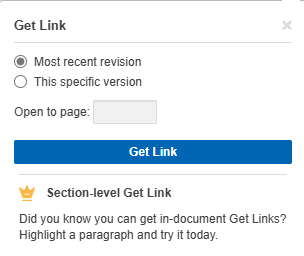
There are two kinds of links available within the Get Link option, either a link to the document or a Section-level link that will open to a specific passage you have highlighted. If you click on the chain-link icon in the toolbar you have additional options, including whether you want to link to the most recent version of this document or the version you have open. You can also specify a certain page to open when the link is used.
Download
Documents are displayed in the Document tab as images (PNG) or PDFs. If the document is displayed as a PNG you can also download
the document as a PDF. Click  at the top right of the window. (If the document is already displayed in PDF format in the Document
Viewer window, this icon will not be available.) The steps to download a PDF document
are also determined by whether you choose to use the built-in document
viewer of a browser.
at the top right of the window. (If the document is already displayed in PDF format in the Document
Viewer window, this icon will not be available.) The steps to download a PDF document
are also determined by whether you choose to use the built-in document
viewer of a browser.