Advanced Search
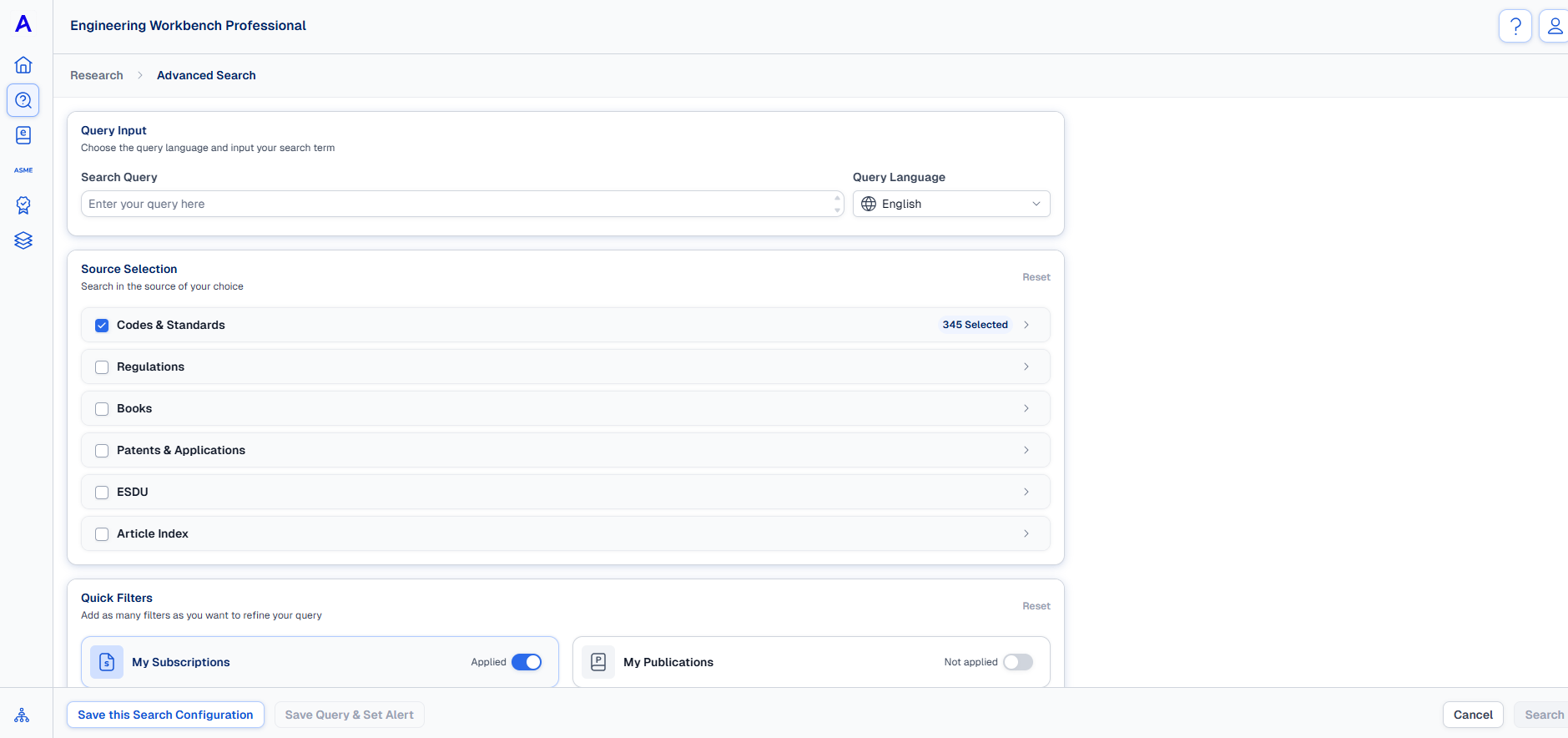
Click Advanced Search in the drop-down list to the left of the query box.
Query Input
This is where you type whatever you'd like to search, just as you would in a search bar. You can also set the query language.
Source Selection
Use this section to include or exclude sources from your query.
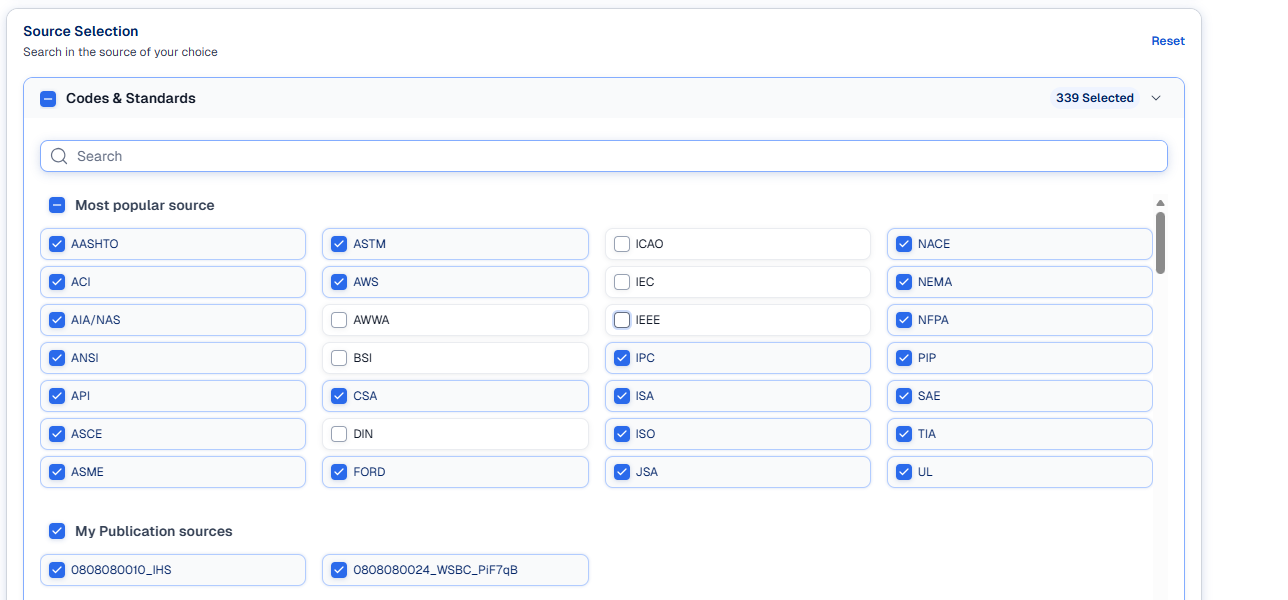
Click on each section heading to expand the section and view the subsections available.
Skip the scroll by searching for the exact subsection you're looking for.
Click on the section head again to collapse that section.
Quick Filters
The Quick Filters section is available for further customization, use the buttons to enable the following:
-
My Subscriptions: Narrows search to show only documents you are subscribed to.
-
Active Standards: Narrows search to only standards marked as Active.
-
AV-DATA: Narrows search to include only AV (Aviation Data) data sources.
-
My Publications: Narrows search to the publications managed by your organization (if any).
-
Most recently revised standards: Narrows search to show only the most recently revised version of the documents.
Custom Filters
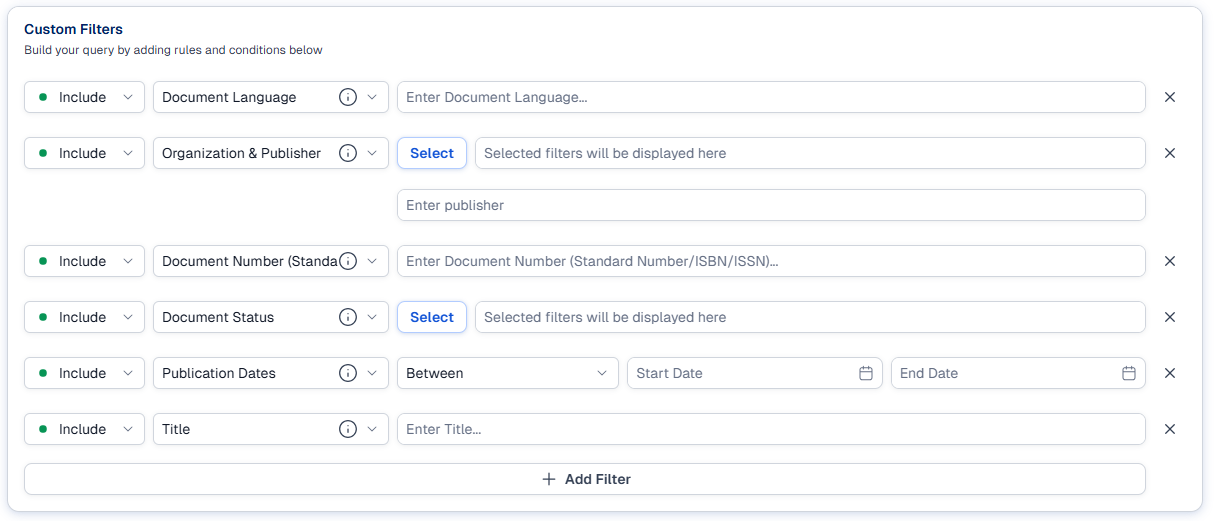
In this section you can create filters to customize your query even further.
-
Use the drop downs to set each line as an Include or Exclude rule.
-
Then, use the next drop-down to select which metadata field you want to query.
-
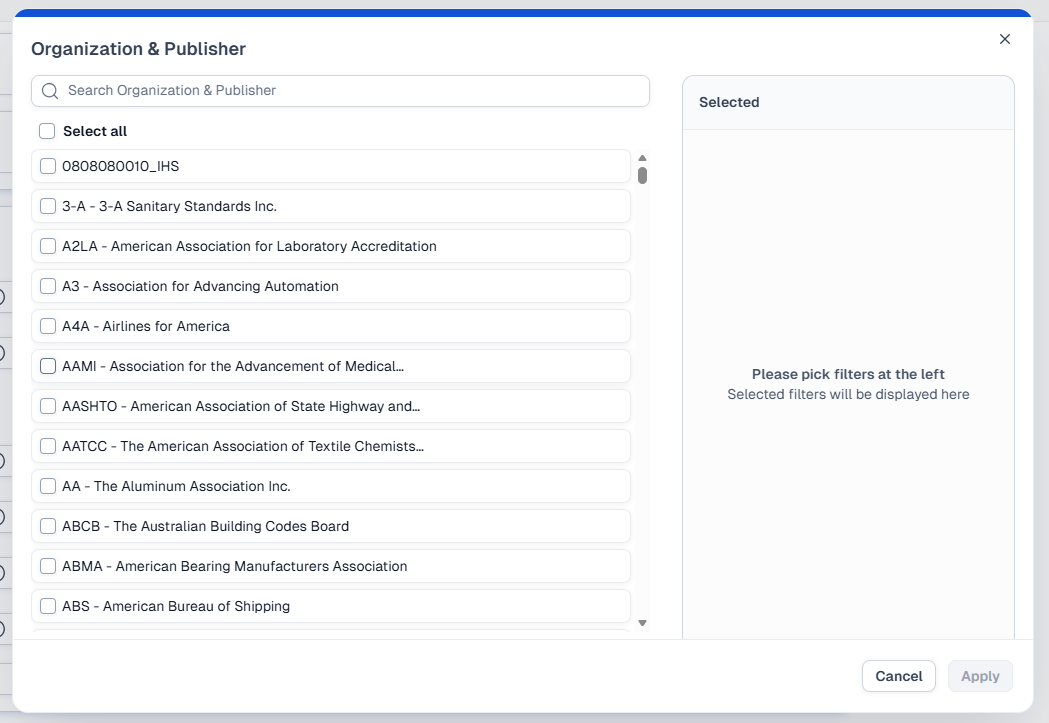
Some metadata fields have subsections from which you can select one or multiple items. You will see a Select button next to the metadata drop down. Click this to open a pop-up where you can search through these options.
-
-
-
And finally enter the content you are looking for within that metadata field.
Use the Xs on the right to remove unnecessary rules, or click Add Filter to add a new line.
The advanced search can also be used to match complete URLs or fragments of URLs. For example:
|
Path |
Query |
Match/Does Not Match |
|
http://www.example.com/QA Validations/Cases |
com |
Match |
|
http://www.example.com/QA Validations/Cases |
.com |
Match |
|
http://www.example.com/QA Validations/Cases |
example |
Does Not Match |
|
http://www.example.com/QA Validations/Cases |
Example.com |
Match |
|
http://www.example.com/QA Validations/Cases |
ample.com |
Does Not Match |
|
http://www.example.com/QA Validations/Cases |
www com |
Does Not Match |
|
http://www.example.com/QA Validations/Cases |
Example com |
Does Not Match |
Boolean expressions
You can use the following Boolean operators in any field. Boolean operators must be enclosed in angle brackets ( < > ):
- <AND>
- <OR>
- <NOT>
To build your own complex queries with additional Boolean logic, click Query Builder, and then type your query in the Query box.
- To specify any operator, type < , and then click the operator that you want to add to your query.
- To specify a metadata field, use the <IN> operator, and then click the field that you want to add to your query. For example, enter <IN> Publication Date.
Saving your selections
When you're satisfied with your configurations you can save the filters in two ways: as a search configuration (reusable later) or as a query (to receive updates when new results are available).
Save as a Search Configuration
- Click Save this Search Configuration on the bottom of the Advanced Search page.
- Type a name for a new search configuration in the input field that appears.
- Click Save.
This saves the settings you have selected as a search configuration. You can manage your saved search configurations on the Settings page, within the Search Configurations tab.
You can also save your filters as a query.
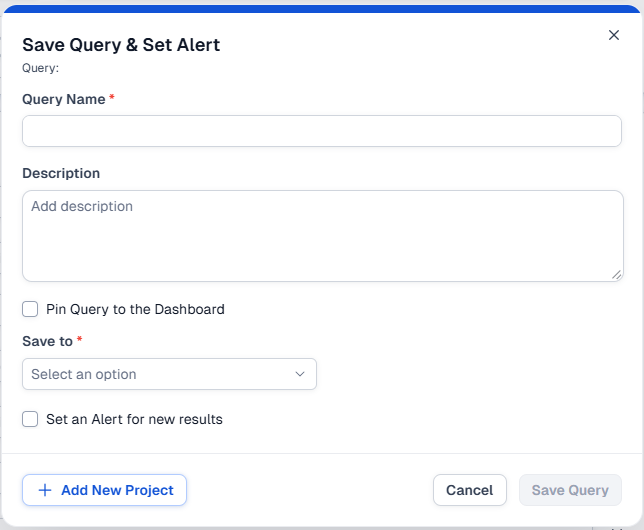
Save Query & Set Alert
-
After making your selections, click Save Query & Set Alert.
-
Name the query.
-
Add a description. (Optional)
-
If you want to access to this query from your homepage, click Pin Query to the Dashboard.
-
Use the Save to: drop-down to select the location where the query will be saved.
-
You can also use the Add New Project button to create a new folder for this query.
-
-
To receive notifications about new documents, click the box next to Set an Alert for new results.
-
Select an interval for these notifications (Daily, Weekly, etc.) and provide an email where the notifications will be sent.
-