Document History
You can view a document's history in two places: in the Document Summary and while you are viewing that document.
Document Summary: History Tab
The historical versions of the document are listed here chronologically starting with the most recent.
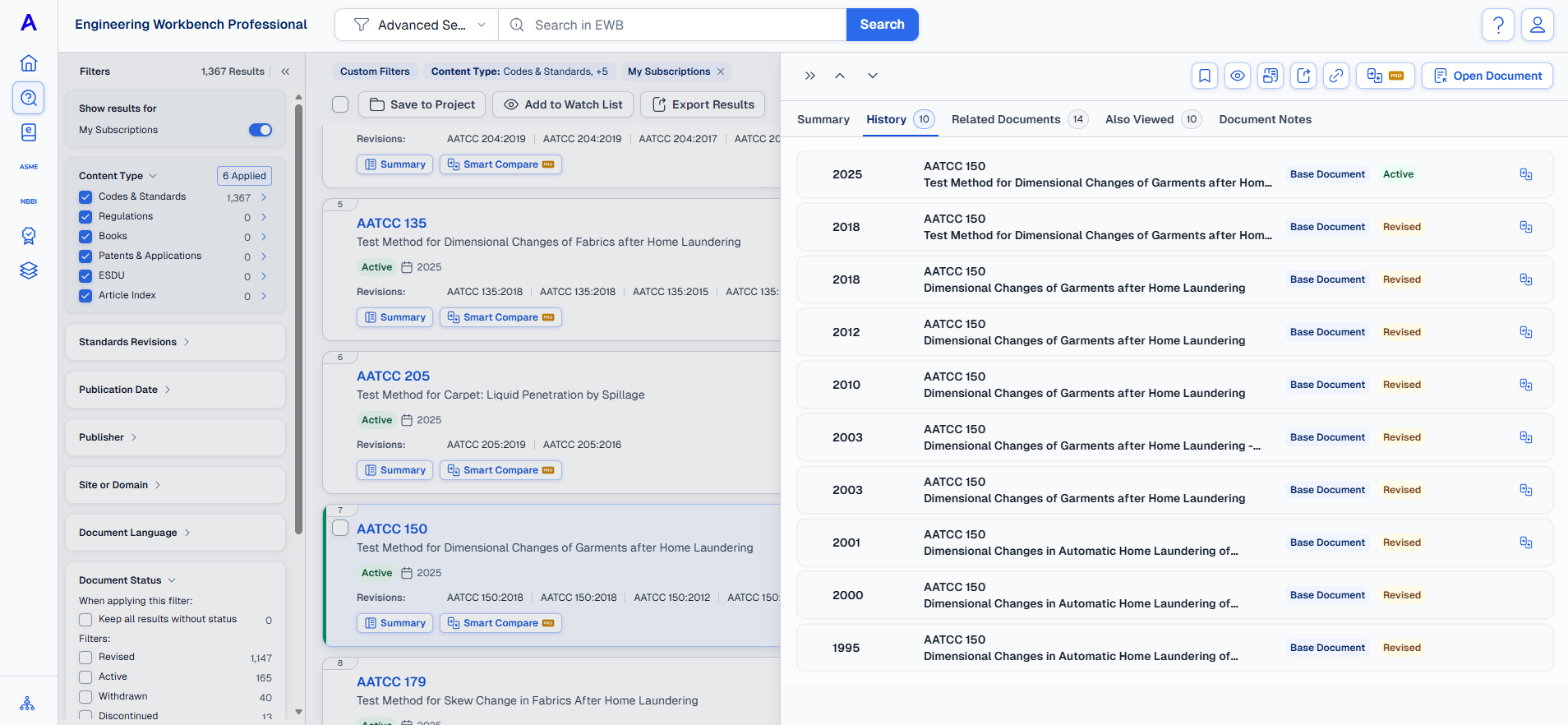
Within this view you can:
-
(If you have access) Click the title to open that particular edition of the document.
-
Click the button at the right end of the document listing to open up Smart Compare.
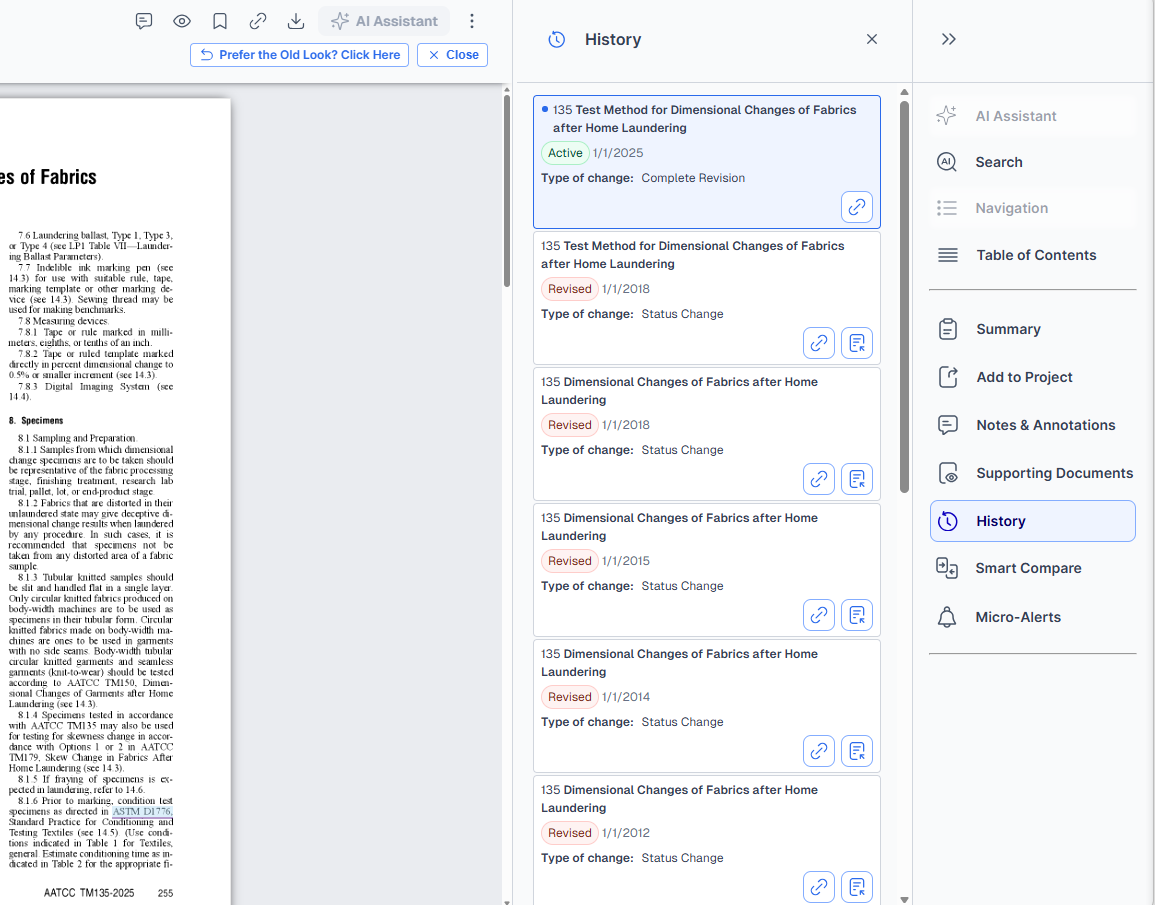
Document Viewer: History Tab
This view shows the same information - document number or title, type of change (Example: Revision), and the publication date.
While using this tab you can:
-
Click the hyperlink icon to copy a link to that historical version to your clipboard.
-
Or, click the page icon to open a specific edition of the document.