Working with the Related Documents tab in the Document Viewer
To display related documents, open a document in the Document Viewer and click the Related Documents tab.
The Related Documents tab looks like this:
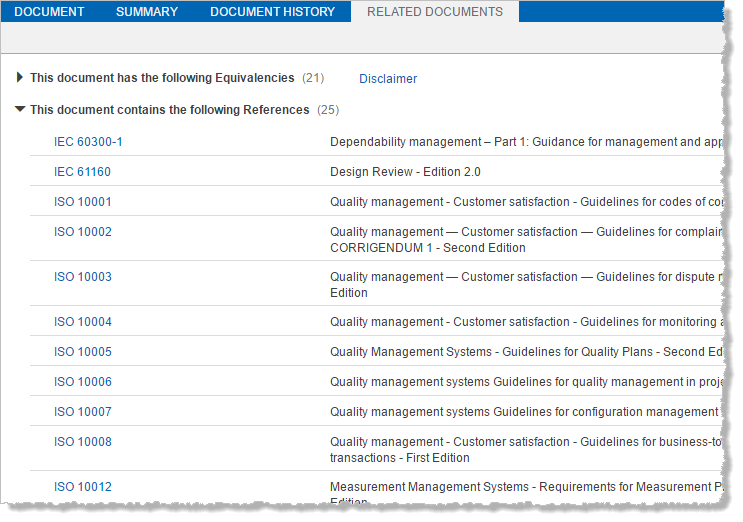
The Related Documents tab displays other names of a Codes & Standards document, as well as a list of other documents that reference it.
The following reference types can appear in the list:
- Replacement: Standards documents that contain replacement information related to this document.
- Identical: Standards documents are Identical to this document in technical content, structure, wording.
- Equivalencies: Standards documents are Equivalent to this document in technical content, but are not fully equivalent in the way content is presented.
- Not Equivalent: Standards documents are Not Equivalent to this document. They do not display any clear equivalence in technical content and structure.
- Modified: Standards documents are Modified in relation to this document if technical deviations between the two documents are clearly identified and explained.
- Modified As: This document has been altered. The revised document is referred to as the Modified As version.
- Reference: This document contains these References.
- Referenced By: This document is Referenced By documents listed in this section.
- Also Know As: This document is Also Known As a different document number or title.
- Procurement Specification: This document or standard is identified as a Procurement Specification and should be considered prior to manufacturing or procuring parts specified by this document or standard.
Click  next to a reference
type to display the full list of documents, and then click the document
number to display the document in the Document Viewer.
next to a reference
type to display the full list of documents, and then click the document
number to display the document in the Document Viewer.
If you see  next to the document
number, it means the document is not part of your company subscription.
next to the document
number, it means the document is not part of your company subscription.
If you see  next
to the document number, it
means the document is not part of your company subscription, but a preview
of the document is available.
next
to the document number, it
means the document is not part of your company subscription, but a preview
of the document is available.
If you see Redline under a document number, it means there is a corresponding redline document. If your company has a subscription to the redline document, click Redline to display it in separate Document Viewer window. If a redline document exists, but you do not have a subscription to it, the link is visible (grayed-out), but disabled. If your company does not have a subscription that enables you to access a redline document, contact AccurisCustomer Care for details about getting a subscription.
If you see QPL under a document number, it means there is a corresponding QPL document. Click QPL to display the QPL documents in a separate Document Viewer window.