Viewing search results on the Patent Classes tab
The Patent Classes tab displays patent information by invention categories, standardized by the U.S. or the International Patent Offices to classify types of technology.
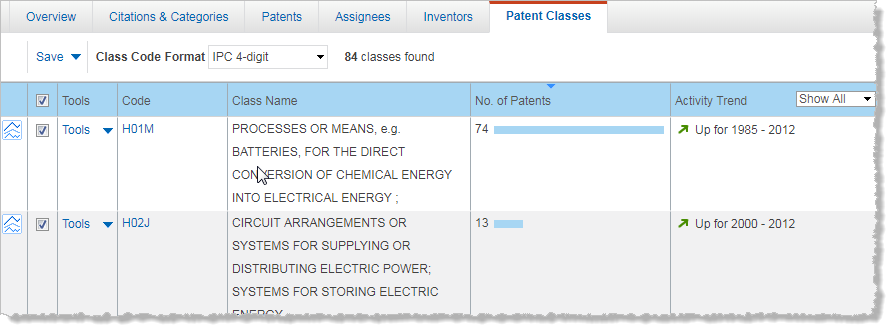
The total number of patents found for this analysis is displayed above the results.
The Patent Classes table includes the following columns:
- Code: Lists the patent class codes for all inventions by the profiled company.
- Class Name: Lists the name of each U.S. or International Patent Class.
- No. of Patents: Lists the total number of patents within each patent class for the selected date range.
- Activity Trend: Classifies the innovation activity within each patent class as Accelerating, Constant, Declining, or Low (based on the frequency with which a particular type of technology is patented by this company).
Working with the Patent Classes table
- To sort information by Code, Class Name, No. of Patents, or Activity Trend, click the corresponding column header.
- To view the patent class data using either the International Patent Class (IPC) system codes (in 4-digit and full format), the U.S. system codes (in 3-digit or full format), or the Cooperative Patent Classification (CPC) system codes (in 4-digit and full format) select the appropriate option from the Class Code Format list above the table.
Note: The U.S. Patent Class (US) and the International Patent Class (IPC) systems are not equivalent. Although all U.S. patents are assigned a corresponding IPC code, international patents do not have a corresponding U.S. code. If your search targeted international Patent Collections, you cannot view your results using U.S. class codes (these options are unavailable in the Class Code Format list).
- To filter the list by patenting activity, select the type of activity trend from the list in the Activity Trend column header.
- To view an activity trend chart for a specific patent class, click
 (Activity Trend) for that patent class. This displays a chart of the number of patents issued to the profiled company each year within the selected patent class (during the date range specified in your query). You can change the type of chart by clicking
  or
or  .
. - To view information for a particular patent class, click Tools at the left of the assignee name, and then select View patent list for this class, View assignees for this class, or View inventors list for this class.
- To go to a different page, click the desired page number. To navigate the pages sequentially, click the Back arrow or the Forward arrow located before and after the page numbers.
Saving patent results
You can save your patent results to the following:
- My Workspaces. You save items to a named project in My Workspaces. (A project is like a folder that contains your saved items.)
- A file on your hard drive, in any of the following formats:
-
-
Excel (.xlsx extension)
-
PDF
-
To save patent results to My Workspaces
- Click Save, and then click Save to My Workspaces.
- In the Save to My Workspaces dialog box, select an existing project, or add a new project.
- If your result set fills more than one page, choose whether to save only the results that are displayed on the current page, or to save all browsable results (between 200 and 1000 results) that are returned on all pages.
- Click Save.
Exporting patent results
Your query is exported along with all the data that is displayed in your results.
To export patent results to a file
- Click Save, and then click Export.
- In the Export Results dialog box, select one of the following file types:
- Excel
- If your result set fills more than one page, choose whether to export only the results that are displayed on the current page, or to export all browsable results (between 200 and 1000 results) that are returned on all pages.
- Click Export.
- Follow the directions that your browser gives you for downloading data to a file.