Overview of Research
The Research page is your primary source for information about the documents and other materials in (and outside of) your subscription. Understanding how to locate the right content is easy once you are familiar with the sections of the page. Those sections are listed here in order of where they appear on the page, from left to right:
-
Filters
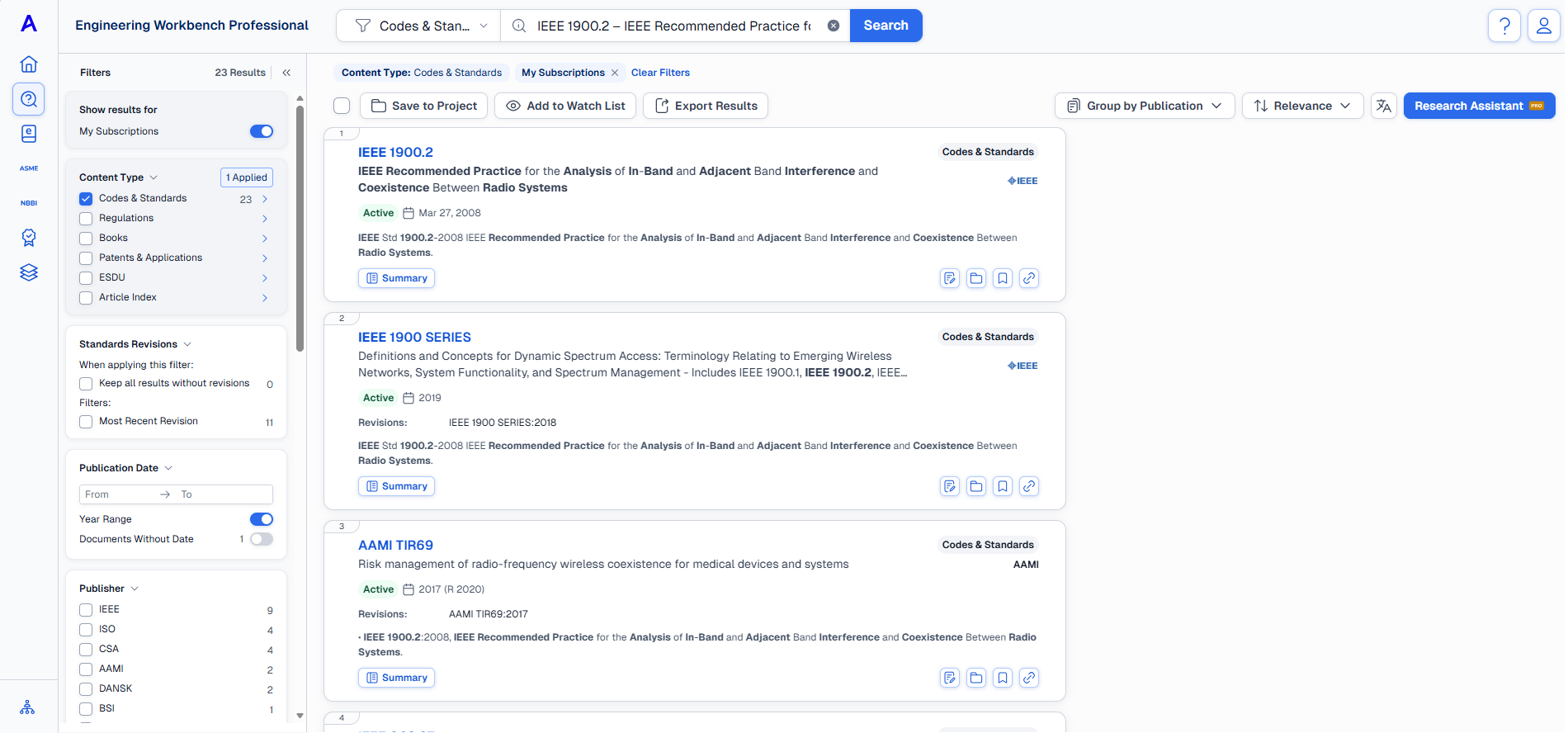
In this page we will cover how to get started using the Filter panel.
Filtering Research Results
The filters panel opens on the left side of the Research application:
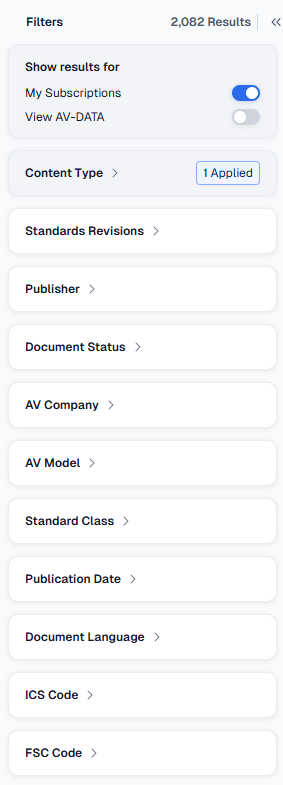
Each section can be expanded or collapsed.
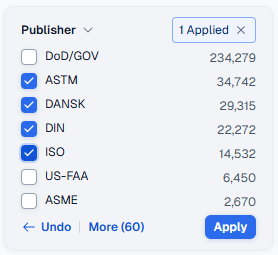
Click Apply after making filter selections. Any active filters will appear at the center of the results column.
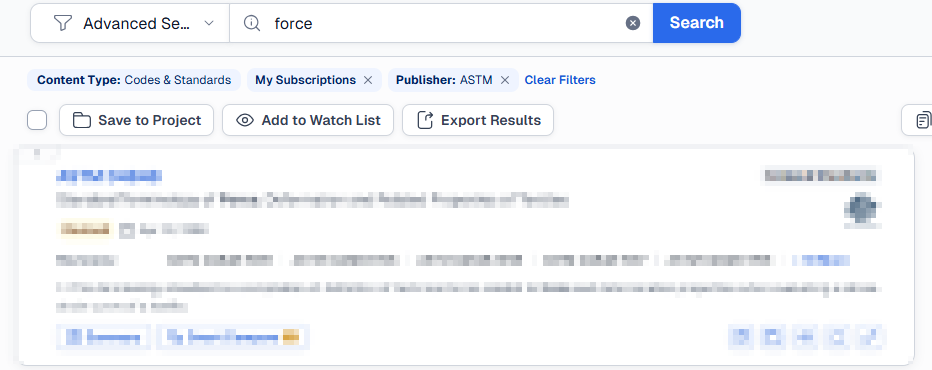
If you want to reset your Research experience to your default, click Clear Filters.
Saving Filters
If you want to save a specific configuration of filters, click on the Search bar drop-down, then select Save Query.
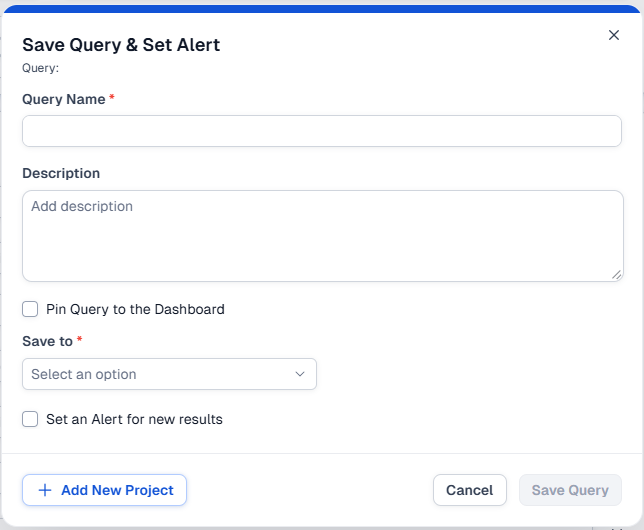
Save Query & Set Alert
-
After making your selections, click Save Query & Set Alert.
-
Name the query.
-
Add a description. (Optional)
-
If you want to access to this query from your homepage, click Pin Query to the Dashboard.
-
Use the Save to: drop-down to select the location where the query will be saved.
-
You can also use the Add New Project button to create a new folder for this query.
-
-
To receive notifications about new documents, click the box next to Set an Alert for new results.
-
Select an interval for these notifications (Daily, Weekly, etc.) and provide an email where the notifications will be sent.
-