Searching patents
Accuris's patent collections contain semantically indexed and presummarized documents from major worldwide patent repositories, including USPTO, EPO, WIPO, and JPO.
To search and analyze patents
- On the home page, click PATENT INTELLIGENCE.
- Under I want to, click Search patents.
 You
can also search patent collections on the Research
page. However, searching patent collections on the Patents Intelligence
page retrieves patent bibliographic information that can be used to sort
results and analyze trends.
You
can also search patent collections on the Research
page. However, searching patent collections on the Patents Intelligence
page retrieves patent bibliographic information that can be used to sort
results and analyze trends.
What is shown on the Search Patents page
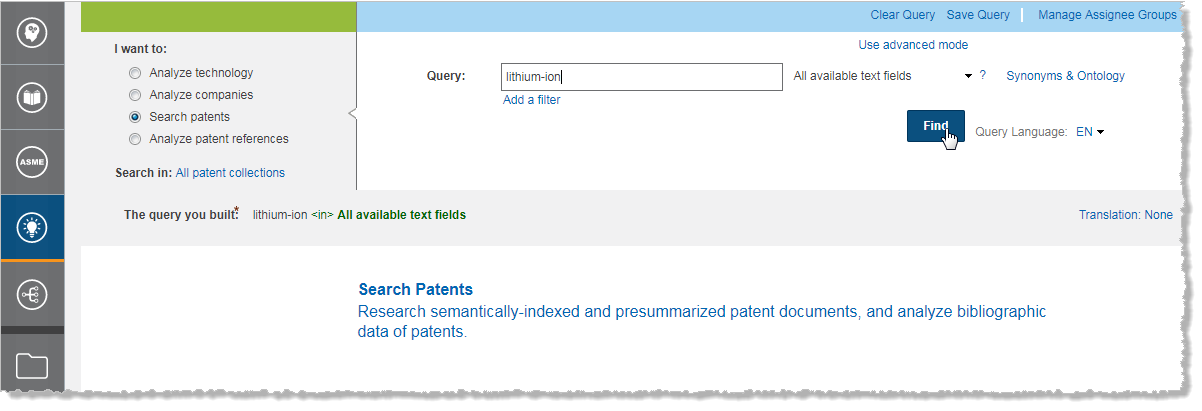
The Search Patents page includes the following fields, options, and commands:
- Query box,
where you enter your patent query. While you are typing your query,
Engineering Workbench
provides a list of suggestions and possible corrections as you type.
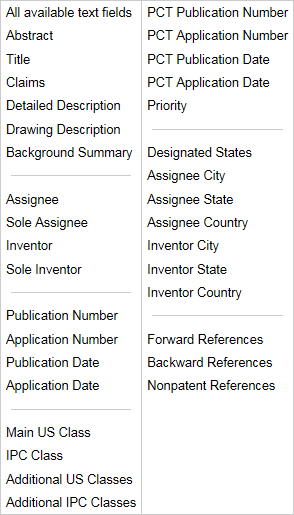
You can further focus your search by specifying a text field. Click
 to see a list of available text fields, and
then click the name of a text field to select it. For more information
about filtering by text fields, see Fielded
search.
to see a list of available text fields, and
then click the name of a text field to select it. For more information
about filtering by text fields, see Fielded
search. - Add Filter.
You can further focus your search by specifying one or more patent
field filters. If you are entering criteria for one or more patent
fields, click Add Filter,
click
 All
available text fields, and then select
a patent field from the
list. For more information about filtering by patent fields, see Fielded search. To remove a filter,
click
All
available text fields, and then select
a patent field from the
list. For more information about filtering by patent fields, see Fielded search. To remove a filter,
click  .
. - Synonyms and Ontology command. Enables you to see and select query synonyms, more general query terms, and more specific query terms for your query.
- Find command. Begins the search after you enter your query and select the target patent collections.
- Query Language, where you select a language for your query.
- Use advanced mode.
Click this link to enter a complex keyword query manually,
and then enter your query in the Filters
box. As you type, you can click
 to select additional
filters (assignees, dates, patent classes, cities, states, countries),
and you can type < (angle bracket)
to select an operator (<in>,
<and>,
<or>,
<not>).
to select additional
filters (assignees, dates, patent classes, cities, states, countries),
and you can type < (angle bracket)
to select an operator (<in>,
<and>,
<or>,
<not>). - Clear Query, Save Query, and Load Query commands enable you to clear the current query, save the current query, or load a previously saved query.
- Manage Assignee Groups link. Enables you to modify your assignee groups.
Translating patent search results
Search result citations can be translated into English, French, German, Japanese, and Chinese from the original citations.
To translate the display of search results
- Click Translation.
- On the Translate results to list, click the language that you want to translate your results to.
- Next to From, select the check boxes next to the languages that you want to translate from.
Available patent collections
The following patent collections are available to be searched:
- Chinese Granted Patents: 1985–current
- Chinese Granted Patents for Utility Models: 1993–2010
- Chinese Patent Applications: 1985–current
- Chinese Utility Model Applications: 1985–1992, 2010–current
- European Granted Patents (EPO): 1981–current
- European Patent Applications (EPO): 1988–current
- French Granted Patents: 1985–current
- French Patent Applications: 1976–current
- Germany Gebrauchsmusters (Utility Model): 1980–current
- German Granted Patents: 1980–current
- German Patent Applications: 1970–current
- Great Britain Granted Patents: 1970–current
- Great Britain Patent Applications: 1979–current
- Japanese Granted Patents: 1994–current
- Japanese Patent Abstracts (JPO): 1976–current
- Japanese Patent Applications: 1993–current
- U.S. Granted Patents (USPTO): 1971–current
- U.S. Patent Applications (USPTO): 2001–current
- WIPO PCT Publications (WIPO): 1978–current