Viewing a patent
When you open a patent, the contents are displayed in the  Patent Viewer application.
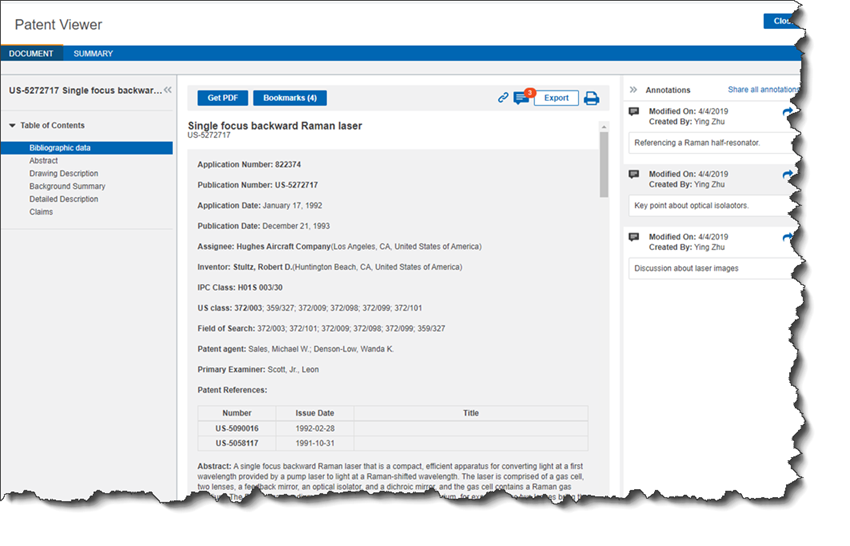
Viewing the original patent document (PDF)
You must have Adobe Reader 6.0 or later installed on your computer to view patent PDF documents.
To access the patent document from the document viewer, click Get PDF. This opens the patent in Adobe Reader.
For information about saving the patent PDF to your hard disk, see the Adobe Reader help.
Viewing a summary of the patent
To view a patent summary
- Click SUMMARY at the top of the document viewer.
Bookmarking a patent
To save a bookmark link to a patent
- Click Bookmark.
- Type a name for your bookmark.
- (Optional) Type a description of the patent.
- To display your bookmark on the home page, select the Display on Home Page check box.
- To link your bookmark to a project in My Workspaces, click
 and then select a project or create a new project.
Exporting a patent
To export a patent to a file
- Click Export.
- Click a format for the exported file:
- Excel
Getting a link to a patent
To get a link to a patent
- At of the Patent Viewer, click
 , which opens the Get Link dialog box
 - Click Get Link, and Engineering Workbench generates a permanent link that you can use to access your document.
- Click Copy to make a copy of the link.
To get a link that takes you a specific section of a patent
When you are working in a document and you want to return to or refer to a specific section of it in the future, you can get a link that leads you exactly to this section of the document.
- Highlight a specific section in the patent.
- Click
- Click Copy to make a copy of the link.
Note: It is possible that your organization has configured security settings in your browser that prevent you from using the Copy button. In this case, you can highlight the link that is generated by Engineering Workbench and manually copy it.
Note: When you get a link that correlates to a specific document, and you want to keep track of it for future use, you must manage it outside of Engineering Workbench. If you want to delete a link you create, contact Accuris Customer Care to do so.