Using Research Assistant visual contextual navigation
To display graphically a context for navigating your categories of search results, click  at the top of the left panel of Research Assistant.
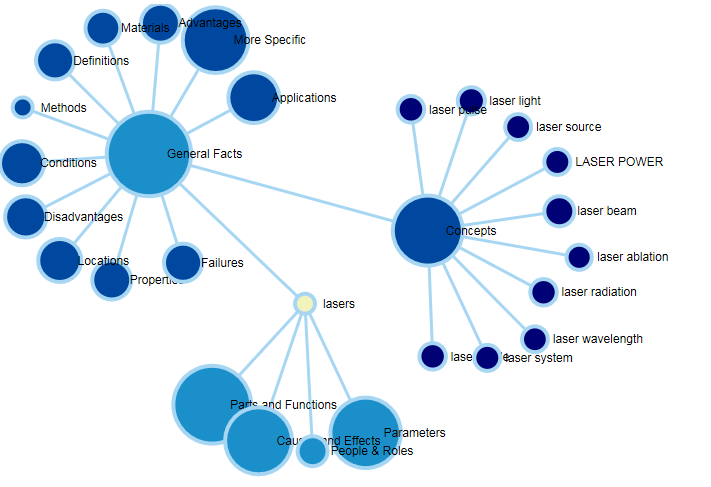
In this example, your focused query is shown as lasers. Results were returned grouped in various categories:
- General categories. Results were returned in five general categories: General Facts, Parts and Functions, Causes and Effects, People & Roles, and Parameters. General categories are displayed as light blue circles. The sizes of the circles roughly indicate how many results were returned for each general category.
- Specific categories. When you click a general category, the specific categories that it comprises are shown. In this example, the specific categories included in General Facts are shown (Applications, Advantages, Disadvantages, Failures, etc.). Specific categories are displayed as dark blue circles, and the sizes of the circles indicate how many results were returned for each specific category.
- Answers. When you click a specific category, the particular answers that were returned for that category are shown. In this example, the particular answers that were included in the specific category Concepts are shown (laser power, laser source, laser radiation, etc.).
When you click on a general category, a specific category, or an answer, the list of answers and citations on the right panel are updated in accordance with the categories or answers that you have selected. For more details about how to work with categories, see Working with categories of search results.
The categories and answers that are shown in the visual context here correspond exactly to the general and specific categories that are shown in the list view ( ) of categories:
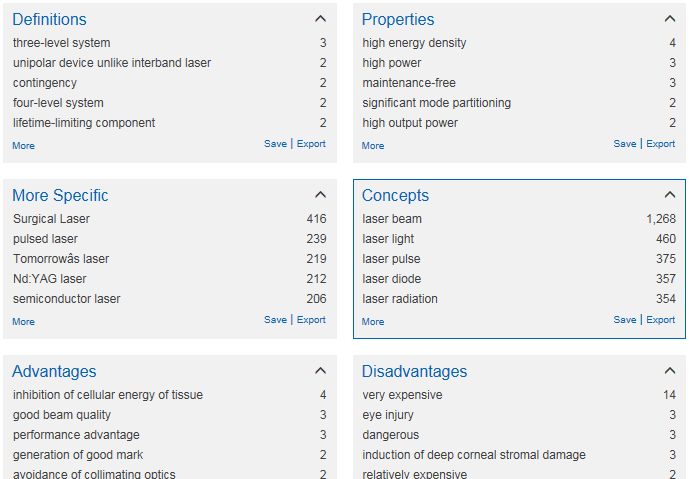
To return to the list view of categories of results, click at the top of the left panel.