Working with answers and citations
For general information about Research search results, see Overview of search results.
For detailed information about applying filters to your search results, see Using filters.
For information about entering queries, see Searching sources.
What you see in the list of Answers & Citations
Search results are shown at the right, either in a  list of
Answers & Citations, or in a table
format. Use the View button (
list of
Answers & Citations, or in a table
format. Use the View button (
 ) to change the list view.
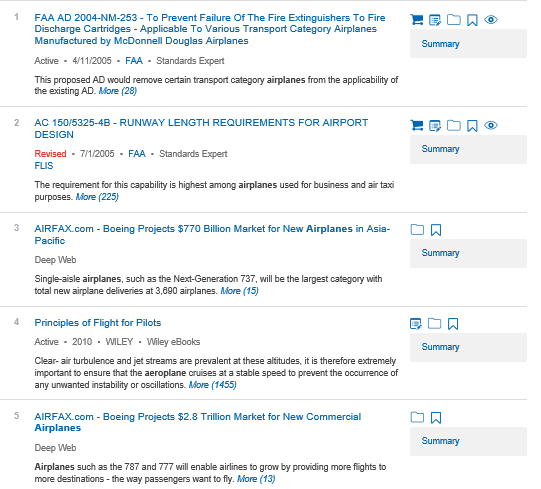
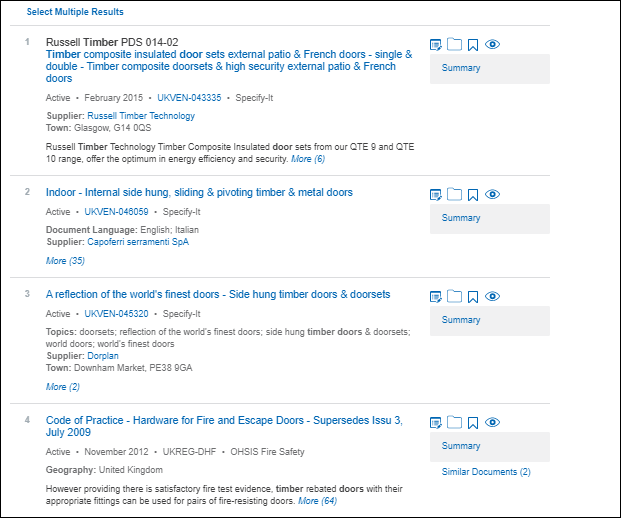
To change the results view
- Click
 to display
results in a list.
to display
results in a list. - Click
 to display
results in a table.
to display
results in a table.
Note: In the table format, hover over one of the search results to access more features related to the document.
Working with the Answers & Citations list, you can do the following:
- View one or more pages of results.
- View the source documents from which the results are extracted.
- View summaries of source documents.
- Click
 to save search results to My
Workspaces or to a file on your hard disk. (If you see
to save search results to My
Workspaces or to a file on your hard disk. (If you see  next to a search result, it means this search result has already been added to My Workspaces.)
 - Click
 to add a
  next to a search result, it means the
 - Translate the results to other supported languages.
Viewing search results
By default, up to 10 results are displayed in the list of search results. To change the number of displayed results per page, click Results per page on the bar above the results. You can display up to 10, 20, 50, 75, or 100 results per page.
Note: if you choose to display larger numbers of results per page, (50, 75, or 100, for example), you can expect a longer delay between the time that you submit your query and the time that results are returned.
For any search, a maximum of from 200 results can be displayed from each source category, where each result is from a different document. In addition, each document can have from 200 matches. To view all matches that were found in a specific document, click the multiple results link for that document in the list of primary results.
Here is an example of one result from an Answers & Citations list:
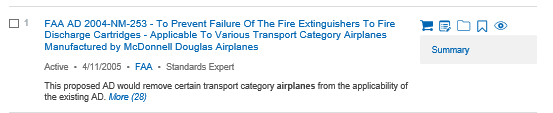
Each result can include one or more of the following:
- (For results from Accuris content, patents, and articles) A link that opens the patent or article, with the extracted sentence highlighted
- (For results from Scientific Effects) An effect or example title link that opens the description, with the extracted sentence highlighted. To view a description of an effect or example, click the title link in the results window. The description opens with the relevant sentence highlighted.
- Name of the data source where the source document is located
- An answer to an expressed or implied question that is suggested by your query
- A sentence citation (snippet), which is a relevant sentence or sentence excerpt that matches your query, with your query words highlighted.
- A link that displays More matches to your query that are located in the source document
- Details about the supplier associated with a search result. Click on the supplier name to view supplier details in the Supplier Viewer.
- A link that lists other results from similar documents
- A link that displays a summary of the source document.
- Click
 to save a bookmark link to the document. (If you see
  next to a search result, it means you have already saved a bookmark link to this document.)
 - Click
 to view a document note that is associated with a document, if you are an Engineering Workbench user.
 - Click
 to or to create a document note, if you are an Engineering Workbench administrator. (If you see this next to a search result, it means a document note already exists in association with a document. Click it to edit an existing document note, or create a new one.)
 - If you see
 ,
it means the document is not part of your company subscription.
,
it means the document is not part of your company subscription. - If you see
 , it means
the document is not part of your company subscription, but a preview
of the document is available. Click the document title or number to
display a preview in the Document Viewer.
, it means
the document is not part of your company subscription, but a preview
of the document is available. Click the document title or number to
display a preview in the Document Viewer. - If you see
 , it means
a subscription or purchase from an external source is required to
open the document. This is not a document you can order from
Accuris.
, it means
a subscription or purchase from an external source is required to
open the document. This is not a document you can order from
Accuris. - If you see
 , it means you can access Smart Compare for this document. This means that you can conduct a side-by-side comparison of two versions of the same document. Smart Compare is a feature that you can access when you are subscribed two versions of the same document. (If you are only subscribed to one version of a document that has multiple versions, will you see the Smart Compare icon, but you will not be able to view the comparison until you purchase another, different version of that document).
Codes & Standards documents may include the following:
- A name of the standards developing organization (SDO) that is the organization or publisher that is the source of a Codes & Standards document. This name may also be a link that directs you to the SDO website.
- A link that displays a 3D Model related to the source document
- A link that displays a Redline document. If your company has a subscription to the redline document, click Redline to display it in separate Document Viewer window. If a redline document exists, but you do not have a subscription to it, the link is visible (grayed-out), but disabled. If your company does not have a subscription that enables you to access a redline document, contact IHS Markit Customer Care for details about getting a subscription.
- A link to FLIS (Federal Logistics Information System) data.
- A link to associated Slash Sheet documents.
- A link to associated QPL (qualified products list) documents.
- Click to add or edit a document note to a document, if you are an Engineering Workbench administrator. Choose to apply the note to the document
or a document family.
- Click
 next to an ASME BPVC or NBBI-NBIC code (if you have a subscription) to open the document compare dialog box, where you can select an earlier or later version of the document that you want to compare.
Navigating pages of results
If the total number of results exceeds what can be displayed in the list, page numbers are shown at the bottom of the results area:

- To go to a specific page, click the desired page number.
- To scroll the pages sequential, click the Back or the Forward arrow located at either end of the page number sequence.

