Viewing a document summary
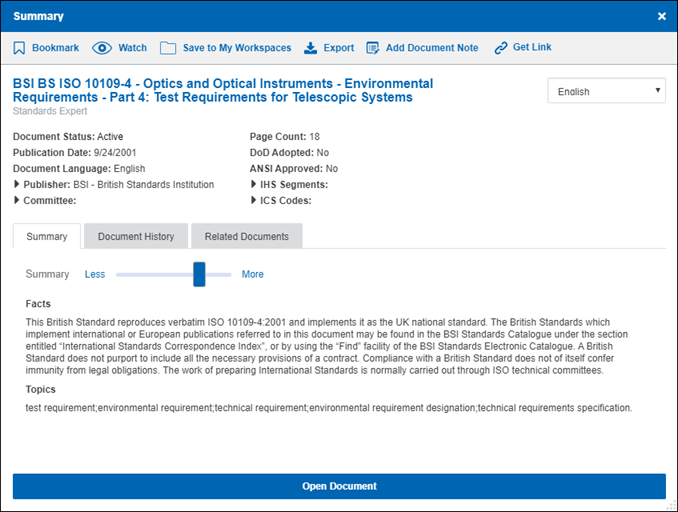
The content of the Summary window is different, depending on the type of source document. You might see any of the following details:
The Publisher section displays relevant information about the publisher of a document,
The Facts section provides a summarized version of the document text. More or less information can be shown by selecting a different detail level.
The Topics section of the summary lists important noun phrases that appear in the document.
This  , it means
a subscription or purchase from an external source is required to
open the document. This is not a document you can order from
Accuris.
, it means
a subscription or purchase from an external source is required to
open the document. This is not a document you can order from
Accuris.
This means
that you have access a preview of document that you don't have a subscription to. To preview a document, click
the title or document number to open a Document Viewer window that
displays an abbreviated version of the document.
means
that you have access a preview of document that you don't have a subscription to. To preview a document, click
the title or document number to open a Document Viewer window that
displays an abbreviated version of the document.
Document summary-related tabs
The tabs present in the summary window are different, depending on the type of source document. You might see any of the following options:
- Click the Table of Contents tab to view the table of contents.
- Click the Document
History tab to view the number of revisions of a
- Click the Related
Documents tab to view other names of a
- Click the Slash Sheets tab to view a list of slash sheets associated with Codes & Standards document.
- Click the QPL (qualified products list) tab to view a list of QPLs associated with a Codes & Standards document.
Codes & Standards features
The links present in the summary window are different, depending on the type of source document. You might see the following options associated with Codes & Standards documents:
- A name of the standards developing organization (SDO) that is the organization or publisher that is the source of a Codes & Standards document. This name may also be a link that directs you to the SDO website.
- The 3D Model link directs you to a separate Document Viewer window that displays a 3D image related to the document source.
- The Redline link directs you to a separate Document Viewer window that displays a corresponding redline document. If your company has a subscription to the redline document, click on Redline to display it. If a redline document exists, but you do not have a subscription to it, the link is visible (grayed-out), but disabled. If your company does not have a subscription that enables you to access a redline document, contact Accuris Customer Care for details about getting a subscription.
- The FLIS (Federal Logistics Information System) link directs you to a separate Document Viewer window that displays FLIS data referenced in the document.
To change the detail level of the summary
- To adjust the level of detail, click a detail-level mark on the Detail level slider above the summary. You can also click Less or More to adjust the setting incrementally.

The lowest detail setting represents the least amount of detail, as well as the least amount of information in the summary. The default setting for the slider is 4.
To translate the summary
- From the Translate to list, select the language into which you want the document summary to be translated.
Document summaries can be translated into English, French, German, Japanese, Chinese, and Russian from the original summaries.
To add a document to your wish list
- If a document is not part of your subscription, you can make a subscription request. At the top of the summary window, under This document is not included in your corporate subscription package, click Add to Wish List. You can see a list of all the documents that you have added to your wish list on the My Wish List page.
To save a bookmark link to a document
- In the toolbar below the Summary title bar, click Bookmark.
To add a Codes & Standards document summary to a watch list in My Workspaces
- In the toolbar under the Summary title bar, click Watch.
To save or export the summary
- To save the summary, in the toolbar under the Summary title bar, click Save to My Workspace.
- To export the summary to a file on your hard disk, in the toolbar under the Summary title bar, click Export.
To add or view a document note
- If you are an Engineering Workbench administrator, click Add Document Note to create a new note, or if a preexisting note exists, click Edit Document Note to edit it, or create a new one. Apply the note to the document or a document family.
- If you are an Engineering Workbench user, click Document Note to view it.
To get a link of the document summary
You can get a link to the document you are working with or want to work with in the Summary window.
If you don't have access to a document, but still want to get a link, Engineering Workbench enables you to get a link to a document summary from this window. If you create such a link, and secure full access to this document at a later time, this link will take you to the full version of the document.
- In the Summary Window, click

- In the Get Link dialog box, select between the Most recent revision or This specific version of the document summary. If you select the Most recent versionoption, this means, that when you use the link in the future, you see the most current version of the document summary. Select This specific version if you need access to this specific version of the document summary.
- Click Get Link.
- Click Copy to make a copy of the link.
To view supplier details
-
If you are working with a document that contains details to a specific supplier, click Supplier to open the supplier details. And then, click supplier name to open the Supplier Viewer that displays information about a specific supplier, as well as the collection of catalogues a supplier has published.
Definitions of Current Bibliographic Data
- Committee: Group responsible for the development and drafting of standards which are then ratified.
- DoD Adopted: Industry Standards that have been adopted by the US Department of Defense in lieu of writing their own or as replacements for former Mil Specs.
- ANSI Approved: ANSI-Accredited Standards Developer (ASD) successfully demonstrates that consensus has been achieved and that the standard's development complied with ANSI's Essential Requirements and oversight process.
- ICS: An international classification system for technical standards. Designed to cover every economic sector and virtually every activity of humankind where technical standards may be used.
- FSC: Codes used to group products into logical families for management purposes
- ISBN: National and international standard identification number for uniquely identifying books, i.e., publications that are not intended to continue indefinitely.
Definitions of New Bibliographic Data
- Harmonized: A European standard developed by CEN, CENELEC, or ETSI. So that manufacturers, other economic operators, or conformity assessment bodies can use harmonised standards to demonstrate that products, services, or processes comply with relevant EU legislation.