Working with the Document History tab in the Document Viewer
To display the document history, open a document in the Document Viewer and click the Document History tab.
The Document History tab looks like this:
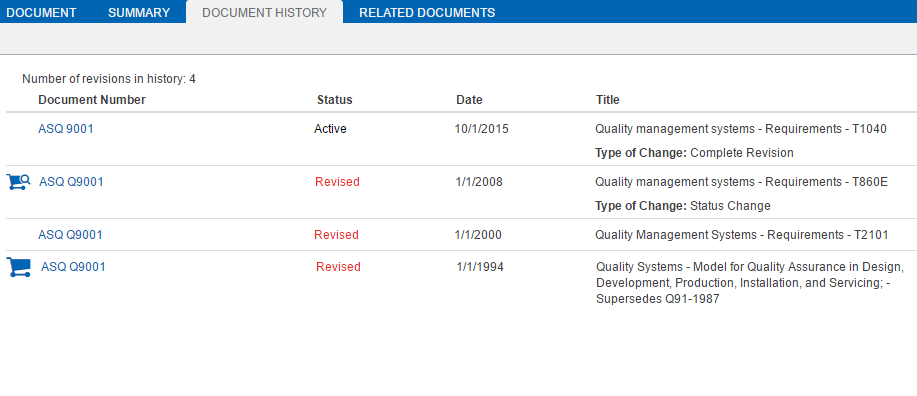
The Document History displays revisions to a
- Document Number displays the number of the document. Click the number to display the document.
- Status displays the document status. Click the status next to a document to display a list of status terms and definitions.
- Date displays the date when document was revised.
- Title displays the title of the document and the type of change made to the document.
If you see next to the document
number, it means the document is not part of your company subscription.
next to the document
number, it means the document is not part of your company subscription.
If you see  next
to the document number, it means the document is not part of your company subscription, but a preview
of the document is available.
next
to the document number, it means the document is not part of your company subscription, but a preview
of the document is available.
If you see Redline under the document number, it means there is a corresponding redline document. If your company has a subscription to the redline document, click Redline to display it in separate Document Viewer window. If a redline document exists, but you do not have a subscription to it, the link is visible (grayed-out), but disabled. If your company does not have a subscription that enables you to access a redline document, contact Accuris Customer Care for details about getting a subscription.
If you see FLIS (Federal Logistics Information System) under the document, it means there is corresponding FLIS data. Click FLIS to display data details.
If you see Slash Sheets under the document, it means there are slash sheets that correspond to the standard. Click Slash Sheets to display them.
If you see QPL under the document, it means there are QPL documents that correspond to the standard. Click QPL to display them.