Filtering search results
The filters panel is displayed at the left of your search results. It is also shown at the center on the Research Assistant.
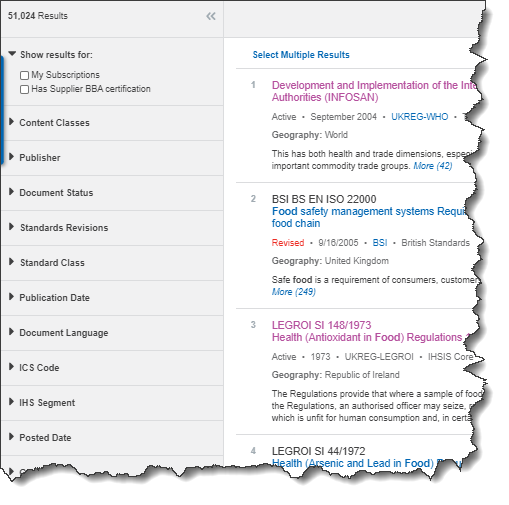
Use the filters panel to selectively filter the results that are returned for your query.
Available filters are displayed in the following filter categories:
– Additional Features
– Content Classes
– Publication Date
– Publisher
– Publication
– Author
– Knowledge Collections
– Modification Date
– Site or Domain
– Document Language
– Document Status
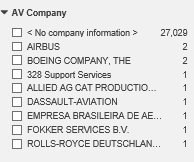
– AV Company
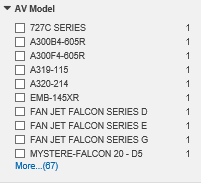
– AV Model
– Standards Revisions
– Standards Class
– ICS Code
– FSC Code
– AccurisSegment
– Posted Date
– Geography
 indicates a collapsed filter category.
  indicates an expanded filter category.
To collapse the list of filters in any filter category
– Click the category title (for example, Content Classes).
To expand a collapsed filter category
– Click the category title.
To display a ToolTip for that filter category
– Hover the pointer over a category title.
Filtering your search results
To filter your search results, select the check boxes of the filters that you want to apply, and then click Refresh Results to apply the filters.
Click More at the bottom of the filter category to display more filters than are shown in the filters panel.
 indicates that you have applied the selected
filter to your results.
indicates that you have applied the selected
filter to your results. indicates a filter that you have not applied to your search results.
To clear your selected filters from a filter category, click Clear in the title of the category. To clear all of your selected filters in all filter categories, click Clear Filters at the top of the filters panel.
Filtering your search results by content classes
The list of Content Classes is a category that is shown in the filters panel:
- Codes & Standards
- Books
- Patents & Applications
- Regulations
- Other Accuris Sources
- Articles & Journals
- My Cloud Sources
- My Corporate Sources
Note: The My Corporate Sources category enables you to target your search to internal sources and related documents that come from your organization (and that are indexed in an IHS Goldfire Server), and is only available (and visible) to users who have access to an Engineering Workbenchcloud and the IHS Goldfire hybrid solution.
If you are an Engineering Workbench user who also has a Knowledge Workspace account, you might also see the following categories in the filters panel:
- Occupational Health and Safety
- Food and Drink Safety
- Irish Occupational Health and Safety
- Environmental Management
- Trading Standards Specialist
- Specify-It
Numbers of results are shown at the right of each of the content classes.
- To display a detailed graph of the distribution of results in
any content class, click
 at the right of the numbers of results. Click Distribution
by knowledge bases to display a detailed graph of the distribution
of results from all selected
knowledge bases.
at the right of the numbers of results. Click Distribution
by knowledge bases to display a detailed graph of the distribution
of results from all selected
knowledge bases. - When you click to display a graph of distribution results, the Results Distribution window is displayed for the content class (or for all knowledge bases) that you select. In the Results Distribution window you can do the following:
-
-
Select the check boxes of knowledge bases by which to filter your search results.
-
Hold the cursor over the name of a knowledge base to display information about it.
-
Export the Results Distribution list as a table to an Excel file (XLSX), a CSV file, a Microsoft Word document (DOCX), or a PDF document
-
Filtering your search results by date
You can filter your search results by three date categories:
- Publication Date
- Modification Date
- Posted Date
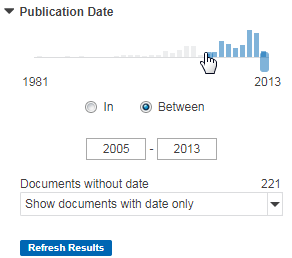
To select a single year as a filter, click In.
To select a date range, do one of the following:
- Click Between, and then type the beginning date and the ending date in the boxes.
- Move the date sliders to select the beginning and ending dates.
Some documents might not have dates.
You can filter the selection of documents to include:
- Only documents that have dates
- Only documents without dates
Filtering your search results by AV-DATA
If you have a subscription to AV-DATA this filter, along with the related AV Company and AV Model filters will be visible in the filters panel.
- To filter your search results by AV-DATA, under Additional features filter, select the View AV-DATA check box. Note: This filter will only return AV-DATA documents.
- To further refine your search results, you can also filter your search by AV Company and AV Model. Select the
 AV Company and/or AV Model categories, and then select the relevant company and/or model check boxes to which you want to target your search.