Working with the Summary tab in the Document Viewer
To display the document summary, open a document in the Document Viewer and click the Summary tab.
The Summary tab in the Document Viewer looks like this:
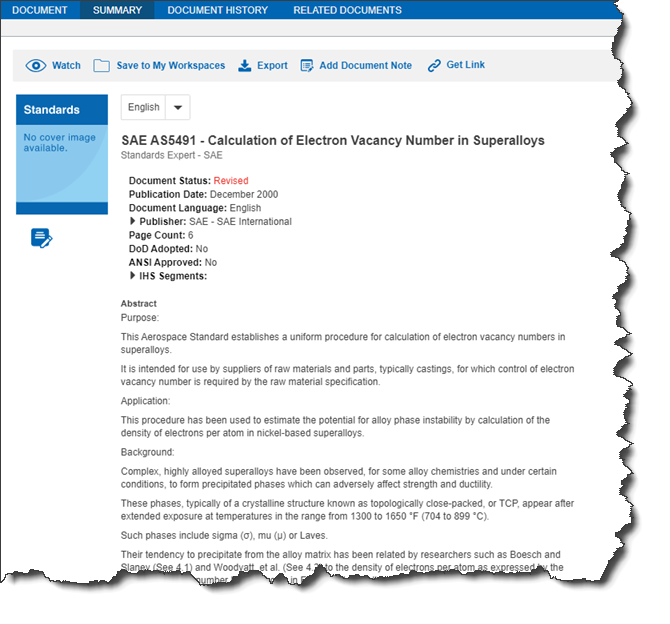
This tab displays an abstract and metadata such as title, author, publication date, or publication number that is associated with the document. The features of this tab are different depending on the type of document that is displayed. You might see the following options:
To translate the summary
- From the Translate to list, select the language into which you want the document summary to be translated.
Document summaries can be translated into English, French, German, Japanese, Chinese, and Russian from the original summaries.
To save a bookmark link to a document
- In the toolbar below the Summary title bar, click Bookmark.
To add a Codes & Standards document summary to a watch list in My Workspaces
- In the toolbar under the Summary title bar, click Watch.
To save or export the summary
- To save the summary, in the toolbar under the Summary title bar, click Save to My Workspace.
- To export the summary to a file on your hard disk, in the toolbar under the Summary title bar, click Export.
To view or add a document note to a document
- If you are an Engineering Workbench administrator, click Add Document Note to create a new note, or if a preexisting note exists, click Edit Document Note to edit it or create a new one. Choose to apply the note to the document or a document family.
- If you are an Engineering Workbench user, click Document Note to view a document note.
To view the website of a standards developing organization (if available)
- If you are working with a Codes & Standards document, expand the Publisher section to display a link to the website of the SDO that is the source of the document. Such a link is available for some, not all, Codes & Standards documents.
To view supplier details
-
If you are working with a document that contains details to a specific supplier, click Supplier to open the supplier details. And then, click supplier name to open the Supplier Viewer that displays information about a specific supplier, as well as the collection of catalogues a supplier has published.
To get a link to a document
You can get a link to the document you are working with or want to work with in the Summary window.
- Click INSERT ICON.
- In the Get Link dialog box, select between the Most recent revision or This specific version of the document.
- Click Get Link.
- Click Copy to make a copy of the link.