Viewing search results on the Patents tab
The Patents tab displays a table of bibliographic data for the patents selected by the company profile analysis (including Publication Number, Publication Date, Title, and Assignee) within the date range specified in your query.
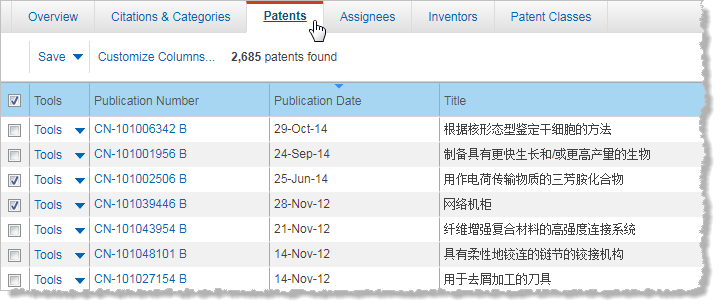
The total number of patents found for this analysis is displayed above the table of results.
Working with the Patents table
- To sort information by any column in the table, click the corresponding column header.
- To customize the columns that you want to display in the table, click Customize Columns.
- To change the number of results to display per page, click
 Results per page below the table.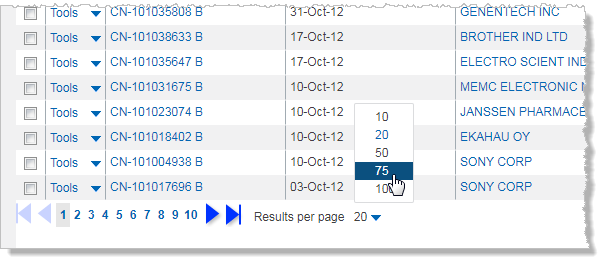
- To translate the titles of patents in the Titles column, click the Translation link above the table. Titles can be translated into English, French, German, Japanese, or Chinese from the original citations.
- To display the full text of a specific patent, click Tools, and then click View Full Text.
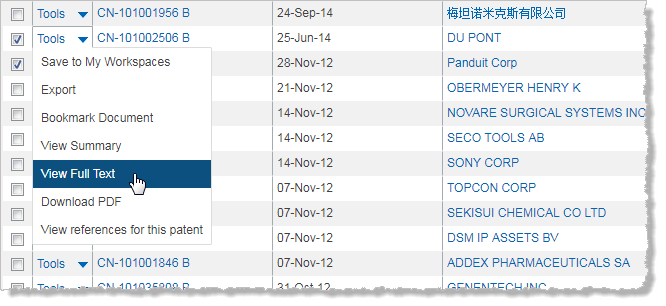
- To display a specific patents as a PDF file, click Tools, and then click Download PDF.
- To display patent references for a specific patent, click Tools, and then click View references for this patent.
- To display a summary of a specific patent, click Tools, and then click Summary.
- To go to a different page, click the desired page number. To navigate the pages sequentially, click the Back arrow or the Forward arrow, located before and after the page numbers.
Saving patent results
You can save your patent results to the following:
- My Workspaces. You save items to a named project in My Workspaces. (A project is like a folder that contains your saved items.)
- A file on your hard drive, in any of the following formats:
-
-
Excel (.xlsx extension)
-
PDF
-
To save patent results to My Workspaces
- Click Save, and then click Save to My Workspaces.
- In the Save to My Workspaces dialog box, select an existing project, or add a new project.
- If your result set fills more than one page, choose whether to save only the results that are displayed on the current page, or to save all browsable results (between 200 and 1000 results) that are returned on all pages.
- Click Save.
Exporting patent results
Your query is exported along with all the data that is displayed in your results.
To export patent results to a file
- Click Save, and then click Export.
- In the Export Results dialog box, select one of the following file types:
- Excel
- If your result set fills more than one page, choose whether to export only the results that are displayed on the current page, or to export all browsable results (between 200 and 1000 results) that are returned on all pages.
- Click Export.
- Follow the directions that your browser gives you for downloading data to a file.