Creating and configuring watch lists
When you create a new watch list, you can also work with and configure documents in it according to your needs. Below are details about how to create new watch lists and about ways to work with the documents assigned to them.
To create a new watch list
- Click Create New List.
- Type a Title for the watch list.
- Type a Description for the watch list.
- To display the watch list on the home page, select the Display on Home Page check box.
- Click Save.
To export watch lists to a file
- Select the lists that you want to export by clicking the check boxes at the top of the lists.
- Click Actions > Export.
- On the Export Results dialog box under Export
to, click the file format that you want to use:
- Excel (.xlsx extension)
- (Optional) Modify the default file name.
- Click Export.
Working with documents in the watch list
When you click on a  watch list, you see the list of documents that you have added to the watch list, as well as details and setting options related to each document.
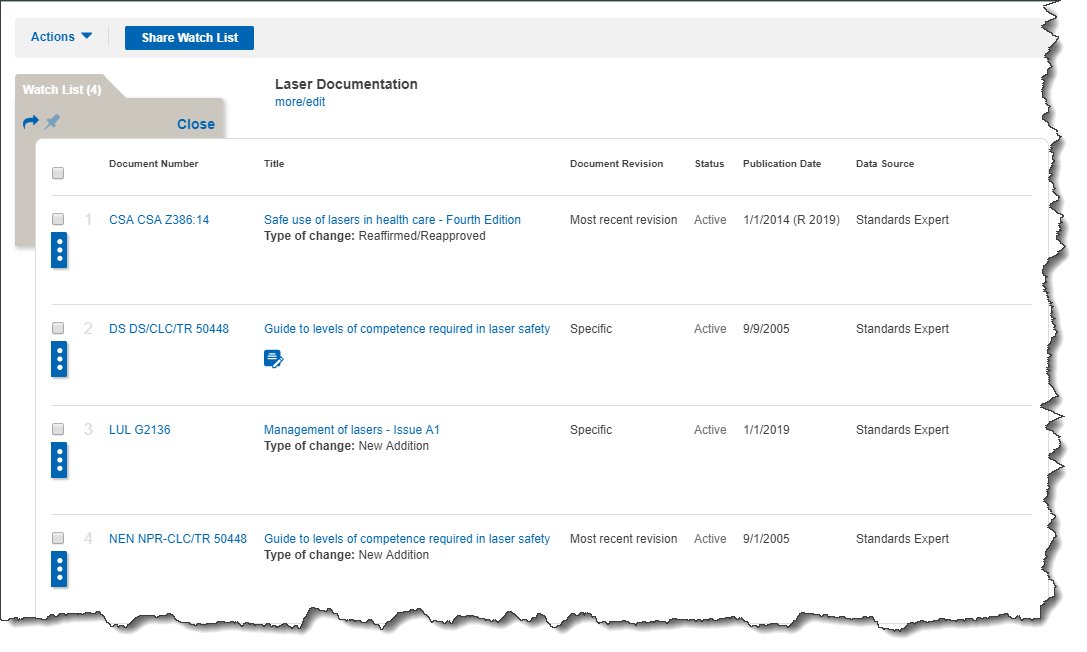
The following columns can appear in a watch list:
- Document Number displays the number affiliated with the document you added to a watch list.
- Title displays the title of the document.
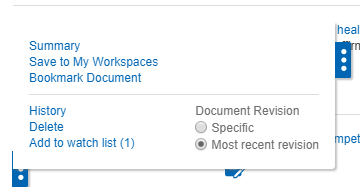
- Document Revision refers to the option to get notifications about changes to a Specific version of the document or changes to the Most recent version of the document you added to a watch list.
- Status displays information about whether document is active or inactive.
- Data Source displays the source from which a document is derived.
- Additional Resources displays (if available) supplemental material related to a document, where you might see the following:
- To view a redline document associated with a document you added to a watch list, click Redline. If a redline document exists, but you do not have a subscription to it, the link is visible (grayed-out), but disabled. If your company does not have a subscription that enables you to access a redline document, contact AccurisCustomer Care for details about getting a subscription.
- To view FLIS (Federal Logistics Information System) data associated with a document you added to a watch list, click FLIS.
- To view slash sheets associated with a document you added to a watch list, click Slash Sheet.
- To view a QPL (qualified products list) associated with a document you added to a watch list, click QPL.
Document revision
You have two options for being notified about changes and updates to a document in a watch list:
- You can receive notification for a Specific version of a document. This means that Engineering Workbench only alerts you to changes or updates to the exact version of the document that you have specified.
- You can receive notifications about the Most recent revision of a document in your watch list. This means that Engineering Workbenchalerts you to changes or updates to the most current version of the document in your watch list (as there can be several versions of the same Code & Standard document).
To assign a document either Specific or Most recent version status, click  next to a document. And then select either Specific or Most recent version in the open tab.