Browse eBooks (Search mode)
To display the Browse eBooks page, click BROWSE EBOOKS on the home page.
The  Browse ebooks
page can be viewed in two modes:
Browse ebooks
page can be viewed in two modes:
- Browse mode, where you can browse Engineering Workbench's collections of books, articles, and journals by discipline (such as Earth Sciences or Electronics) and by subject area within a discipline (such as Minerals and Natural Resources or Optics and Photonics). To return to Browse mode from Search mode, at the top of the left panel click Return to Browse.
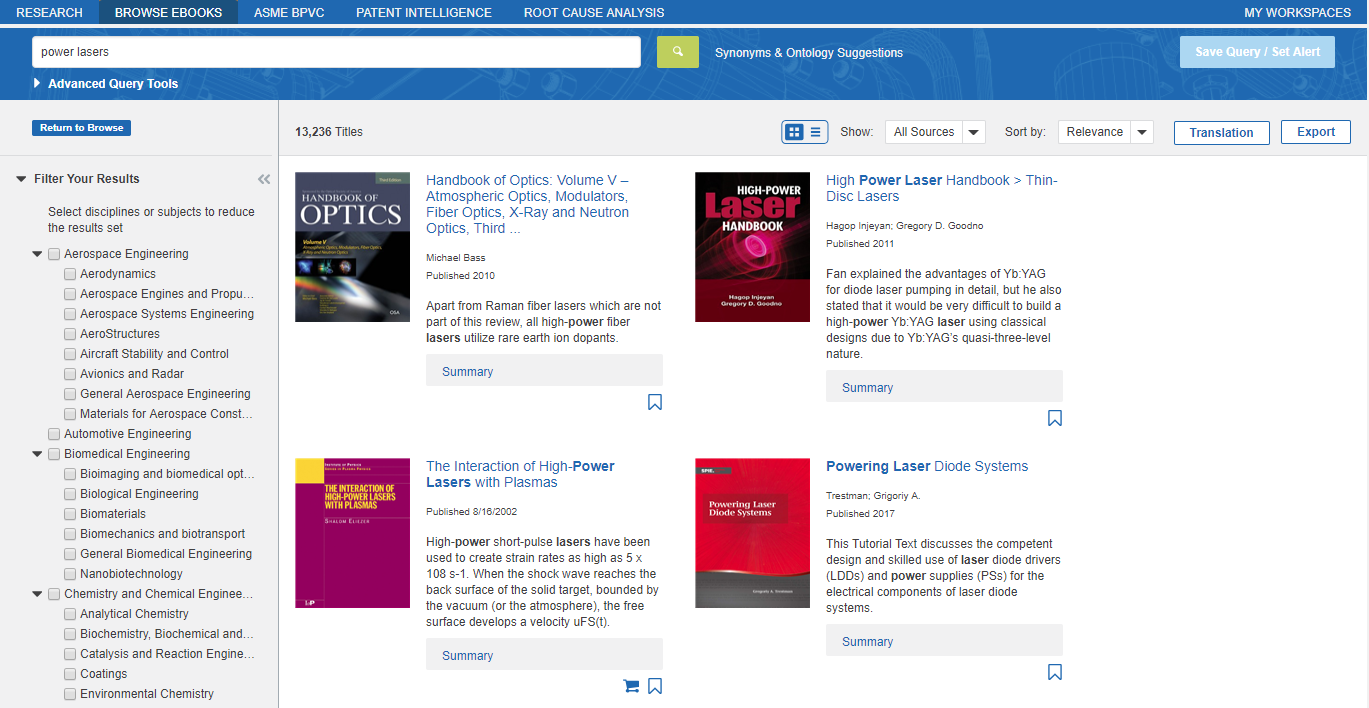
- Search mode, where you can search Engineering Workbench's pre-indexed knowledge collections and filter your search results. To activate Search mode in Browse eBooks, simply enter a query in the query box.

Using Search mode
- Synonyms & Ontology Suggestions. Enables you to see and select query synonyms, more general query terms, and more specific query terms for your query.
- Save Search / Set Alert. Enables you to save the current query and automatically run the query periodically.
When you enter a query in Browse eBooks, the page changes.
-
On the left panel of the page is a
list
of disciplines and subject areas within disciplines.
These enable you to filter the results of your query. -
The results of your query are shown on the right panel of the page, with the most relevant results shown at the top.
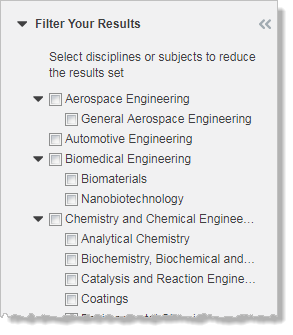
To filter your results
- Select the check boxes of the disciplines and subject areas that you want to filter by. The filter is applied to the results that are shown at the right.
To change the results view
- Click
 to display
the documents in a list.
to display
the documents in a list. - Click
 to display
the documents as a gallery.
to display
the documents as a gallery.
By default, Browse eBooks displays documents from all available sources.
To display only documents from sources for which you have a subscription
- Click
 next to
Show, and then click My Subscriptions.
next to
Show, and then click My Subscriptions.
To change the sort order
- Click
 next
to Sort by, and then click
one of the following:
next
to Sort by, and then click
one of the following: - Relevance. By default, documents that are most relevant to the terms of your query
- are shown at the top.
- Publication Date (newest first or oldest first)
- Title (A–Z or Z–A)
To view more documents on more pages
- Use the pagination tool at the bottom of the page:

You can display 10, 20, 50, 75, or 100 documents per page.
To translate the display of search results
- Click Translation.
- On the Translate results to list, click the language that you want to translate your results to.
- Next toFrom, select the check boxes next to the languages that you want to translate from.
To export document results to an Excel file
- Click Export, and then on the Export dialog box click Export.
To view a document
- Click the document title. The document opens on a separate page of your browser.
 next to a
document means that it is not part of your company subscription. To order
a personal copy, click the shopping cart, and then select either hard copy or electronic
copy. To add the document to your wish list, click Add
to My Wish List. You can see a list of all the documents that you
have added to your wish list on the Subscription
Requests page.
next to a
document means that it is not part of your company subscription. To order
a personal copy, click the shopping cart, and then select either hard copy or electronic
copy. To add the document to your wish list, click Add
to My Wish List. You can see a list of all the documents that you
have added to your wish list on the Subscription
Requests page.
 means a subscription
or purchase from an external source is required to open the document.
This is not a document you can order from Accuris.
means a subscription
or purchase from an external source is required to open the document.
This is not a document you can order from Accuris.