Document Viewer
This page covers all possible tools available via the Document Viewer menu. Depending on your account, the content type, and the publisher you may not have access to all features listed below for every document.
For information regarding the Document Viewer controls that appear at the top of the page, see: Document Viewer Toolbar
 Search
Click and type in a keyword, phrase, or sentence in the drop-down text box. All search results are highlighted in the document.
Smart Search
Smart Search is a feature exclusive to Engineering Workbench Professional. It requires additional document processing, which you can request in the Smart Search section of the left panel.
Table of Contents
To view a specific section of the document, click
 next to a chapter to display its sub-sections,
and then click the section to be taken to that page of the document.
next to a chapter to display its sub-sections,
and then click the section to be taken to that page of the document.
Summary
This section provides general document information such as status, publisher, abstract, etc.
Notes & Annotations
Notes: Account administrators can add document notes which are visible to users of a subaccount when they view the document. If you are an admin and want to add a note open the Document Note section and click Add. If you are a user, these notes will be visible in that section but you cannot add or remove them.
Annotations: To annotate the document highlight the passage you wish to annotate and click Annotate. This will open a text box on the right panel where you can type, format, or otherwise edit your annotation. This icon will also show the number of annotations present in the document.
Supporting Documents
Some documents are enabled with a list of Also Viewed documents. Also Viewed shows (at most) ten documents viewed by other users in relation to the currently opened document.
History
This section provides an account of the document's history including revisions, additions, etc.
Smart Compare
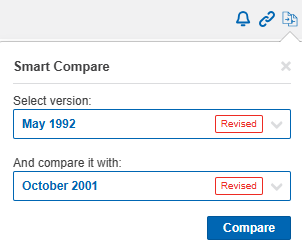
The smart compare tool allows you to open an additional version of the document and view the differences. To open the Smart Compare tool, click on the toolbar icon and select the other document you wish to compare with the document you have open.
Micro-Alerts
This section shows any Micro-Alerts associated with the document.
Click on to a specific alert to scroll to that location in the document.