Entering a query
For information about working
with search results, see Overview
of search results.
To enter a new query
-
In the Query box, type a natural language query as a sentence, a question, a document number, or a phrase (up to 8092 characters). A list of suggestions and possible corrections is displayed as you type.
Note: You can search by document number in the Research application. Engineering Workbench will only search for references to the document number in the document number field. The list of results that are returned for your query will be a targeted one. If you can't find what you are looking for, you can direct Engineering Workbench to perform a more extensive search for references to the document number in other fields, like the document body. You can do this by clicking Get more extensive search results for your query
- Select a Search Configuration in the drop-down list to the left of the query box. Engineering Workbench enables you to configure your search experiences. In the Search Configurations page of User Settings, you can select and specify the filters and sources you want to use when conducting a query and apply your search configuration to one, or more searches. Your search configurations are displayed in the drop-down list to the left of the query box. Default search settings like Codes & Standards and All Content are listed in this menu. Select one of the search configurations and apply it to a query.
-
(Optional) Go to Advanced Search tool in the drop-down menu to the left of the query box to filter source documents (for example, by title, by author or editor, by publication date, by publication number, etc.). Use the Advanced Search tool to search by metadata such as title, author, publication date, or publication number. Results will be more reliable than they would be if you included such metadata information as keywords in the main query box. On this page, specify your filter criteria, and select the check boxes next to the document sources that you want to search. You can select one, or more, source categories to search, and you can also filter your search results to include results only from document sources to which you have a subscription.
- (Optional) To save your query for later use, or to set a query alert to notify you when the query finds new results, click Save Query / Set Alert.
- Click
 to
start the search.
to
start the search.
Exact Search
Engineering Workbench enables you to target your query to an exact term or phrase when you contain the contents of your search within quotation marks. This search capability allows you to conduct queries with precision. Documents with content in the document title and/or in the document body that exactly matches your query are returned in the results list.
Query Type-Ahead
When you type a query in the text box, the query type-ahead function
provides a list of dynamic suggestions and possible corrections as you
type. A  drop-down
list beneath the query input field displays suggestions, which are listed
in the following order:
drop-down
list beneath the query input field displays suggestions, which are listed
in the following order:
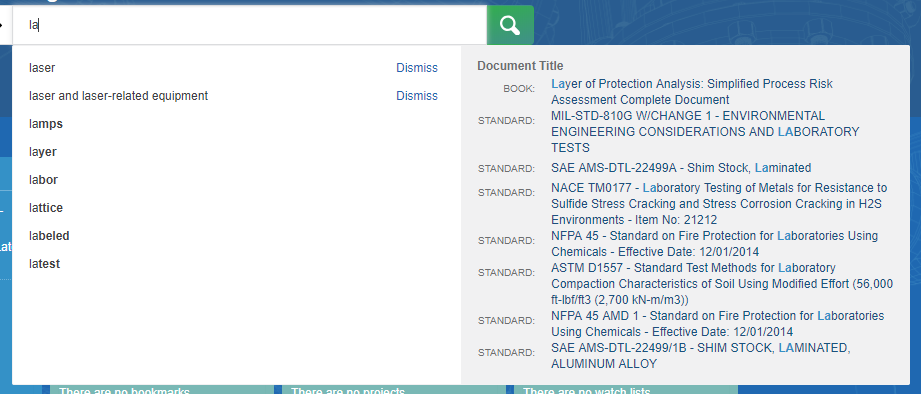
- Two query suggestions are derived from the history of your personal
queries in Engineering Workbench .
You can remove these suggestions by clicking Dismiss
at the right of the query suggestion. Note:
If you do not have a history of queries in
- A list of suggestions that are the most relevant to your query. These suggestions are derived from a database of suggestions compiled from the indexed documents in Engineering Workbench .
- A list of the most popular documents titles related to your query. You can access these documents by clicking on a document title in the list.
Using synonyms and ontology sets
When you submit a query for processing, Engineering Workbench automatically generates a list of query word synonyms that might be relevant to your original query. It also generates a list of more general terms and more specific terms that might be relevant to your original query.
To display the list of synonyms, more general terms, and more specific terms
- Click Synonyms & Ontology Suggestions at the right of the query box.